
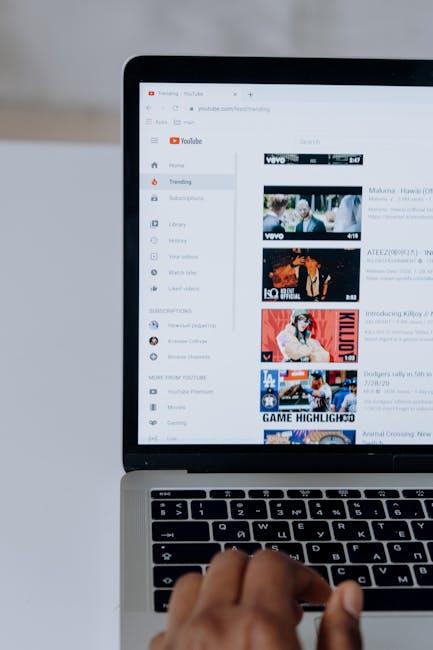
Ever settled in for a cozy binge-watch session on YouTube, only to be interrupted by the abrupt silence of a paused playlist? Frustrating, right? You hit that play button, and instead of smoothly gliding from one video to the next, you’re left wondering why you’re stuck staring at your screen. Whether you’re curating your favorite music tracks, diving into DIY tutorials, or indulging in random cat videos, a non-autoplaying playlist can throw a serious wrench in your vibe. But fear not! Let’s dive into the quirks of YouTube’s autoplay feature, unravel the mystery behind those pesky pauses, and get you back to enjoying your seamless viewing experience. So, grab your popcorn, and let’s fix this!
Common Culprits Behind Autoplay Issues You Didnt Know About
When your YouTube playlist isn’t autoplaying, it can be maddening. You might be sitting there, ready for your binge-watch, and suddenly, nothing happens. One common issue is the autoplay settings themselves. Sometimes, you might accidentally toggle off that little switch that keeps the good times rolling. Make sure to check this setting right next to your video—if it’s off, simply switch it back on and voilà! You’re back in the game.
Another sneaky culprit could be your browser extensions or ad blockers. These handy tools can sometimes step on toes with YouTube’s autoplay feature. Disabling them temporarily might just save the day. And let’s not forget about cookies and cache—they’re like that friend who overstays their welcome. Clearing them can help remove any glitches that bar the autoplay function. Need a quick reminder? Here’s a handy table of things to check:
| Potential Issue | Quick Fix |
| Autoplay Toggle | Check and enable it |
| Browser Extensions | Disable them and retry |
| Cookies & Cache | Clear them out |

Tuning Your YouTube Settings for Seamless Playback
Alright, let’s dive into your YouTube settings and get your playlist autoplaying like a champ! First off, you’ll want to check if autoplay is enabled on your account. This nifty feature is usually found right below the video player. If you see a toggle switch there for autoplay, make sure it’s set to on. It’s like having a car on cruise control; once it’s set, you can sit back and enjoy the ride without worrying about hitting the gas every time! Don’t forget, this setting needs to be adjusted for every device you use, whether it’s your phone, tablet, or smart TV—autoplay settings don’t always sync across platforms.
Next up, let’s ensure your playlists are truly up for the challenge. Sometimes, individual video settings might come into play, especially if the video is restricted in some way (like age restrictions or regional availability). You don’t want to hit a brick wall while you’re cruising through your music, right? Here’s a quick checklist for a smooth experience:
- Check Video Restrictions: Open each video to see if playback is limited.
- Playlist Order: Make sure your playlist isn’t set to a mode that disrupts continuity.
- Browser/Device Compatibility: Is your browser updated? Sometimes, an outdated browser can throw a wrench in the gears.
Once you’ve ticked those boxes, your autoplay feature should kick in like a well-oiled machine, streaming your favorite videos and music without a hitch!

Troubleshooting Tips: Quick Fixes for Autoplay Failures
Is your YouTube playlist playing hide-and-seek when it comes to autoplay? Don’t panic! First, check if the autoplay toggle is switched on. It’s that little switch in the top right corner of your video screen, often overlooked but oh-so-important. If it’s already activated, try toggling it off and on again — it’s like giving your settings a refreshing reboot. Sometimes, even tech needs a little nudge. While you’re at it, clear your browser’s cookies and cache. It’s like spring cleaning for your digital space and can resolve unexpected glitches.
If that doesn’t do the trick, it’s time to investigate your internet connection. A shaky or slow connection can disrupt the flow of your videos, leading to that dreaded silent treatment. A quick speed test can reveal all. But wait, there’s more! If you’re using a mobile device, make sure you haven’t accidentally turned on data saver mode. This setting can sometimes pause autoplay to save your data. Check your device settings and disable this option if it’s active. With these quick fixes, your playlists should be back to seamless listening in no time!
Creating the Perfect Playlist Dynamic for Endless Entertainment
Creating a vibrant playlist is like crafting a mixtape for your soul—each song flows into the next and keeps the good vibes going. To achieve an endless entertainment experience, focus on diversity and mood. Mix genres so that pop sparks into funk, and then transitions into a little indie rock. It’s always a good idea to include a few crowd-pleasers and hidden gems. Think about the emotions you want to evoke; should the playlist energize a workout or chill for a cozy evening? A thoughtful mix keeps listeners engaged, eagerly anticipating what might come next.
Another essential ingredient is the order of the tracks. Like a well-structured story, your playlist should have a beginning that hooks, a compelling middle that keeps interest, and a satisfying end. You can spice things up with strategic key changes or tempo shifts to maintain freshness. Additionally, utilize features like YouTube’s playlist customization options so your audience can easily discover similar artists or genres. Consider adding notes or tags to highlight standout tracks or explain why they made the cut. This connection can turn a casual listener into a die-hard fan, all through the magic of a perfectly curated playlist.
Closing Remarks
And there you have it! With these troubleshooting tips, your YouTube playlists will be back to autoplaying like they’re on a never-ending road trip. Forget about fumbling with your mouse or tapping your screen every few minutes—let those tunes and videos flow seamlessly! If you ever find yourself staring at a paused screen again, just remember these quick fixes. Got any other YouTube quirks bugging you? Don’t be shy—drop them in the comments! Now, go hit play and let the autoplay magic take over. Happy watching! 🎥✨