

Imagine settling in for a cozy evening, ready to dive into the endless ocean of YouTube content, only to hit a wall—Restricted Mode. It’s like trying to enter a fun party only to find out there’s a strict guest list. So, what gives? Restricted Mode is a bit like your overprotective friend who wants to keep things PG, but you just want to explore! Whether you’re looking for educational content, cooking tutorials, or just some good old-fashioned cat videos, not being able to access everything can be a bummer. You should be able to surf through the waves of creativity and entertainment without any barriers. So, let’s get to the juicy part: I’m here to guide you through the simple steps of disabling Restricted Mode on YouTube, giving you the freedom to enjoy everything the platform has to offer! Ready to unlock the fun? Let’s dive in!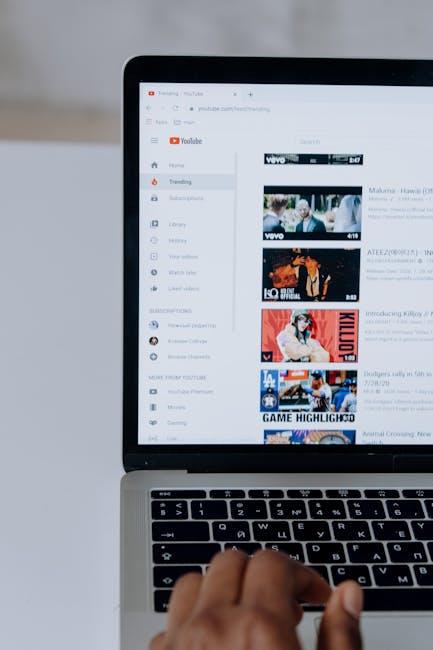
Understanding YouTubes Restricted Mode and Its Purpose
Restricted Mode on YouTube acts like a digital safety net, designed to filter out potentially mature content that might not be suitable for all viewers. This mode automatically screens out videos that are flagged by users or the platform itself due to graphic imagery, explicit language, or other sensitive subjects. For parents and educators, it’s a tool that helps create a safer viewing environment, but for casual users, it can sometimes feel like a frustrating barrier. Imagine trying to enjoy a movie but having the sound muted during the best scenes—yeah, that’s how Restricted Mode can feel when you’re just trying to explore the vast world of YouTube.
While Restricted Mode can keep things PG, it also means some content could slip through the cracks. You might miss out on insightful tutorials, captivating music videos, or engaging vlogs that just happen to get caught in the filter. Sometimes the restrictions come from settings on your account, the device you’re using, or even the network you’re on. Here’s a quick look at what can trigger Restricted Mode:
| Factor | Description |
|---|---|
| Account Settings | Enabled by user preferences or account management. |
| Network Restrictions | Filters applied by schools or workplaces. |
| Device Settings | Settings on mobile devices or smart TVs. |
Navigating the Settings: Step-by-Step to Disable Restricted Mode
Ready to dive back into the full YouTube experience? Here’s how to switch off Restricted Mode without breaking a sweat. First, grab your device and launch YouTube. Log into your account and look for your profile icon—it’s usually chilling in the top right corner. Give it a tap and head to the Settings menu. From there, scroll down until you find the General settings. Inside, you’ll see the Restricted Mode option, which might have been toggled on. Flip that switch to turn it off and watch as a world of unrestricted content opens up!
If you’re navigating through a web browser, the process is pretty similar. Go to the YouTube website and make sure you’re logged in. Click on your profile icon at the top, then go to Settings. Look for the Playback and performance section, where you’ll find the Restricted Mode setting. When it’s enabled, just click on it to disable it. Remember, if you’re using a managed device like a school or corporate laptop, those settings might be locked down by an administrator, so you might want to check with IT if you keep hitting a wall.

Troubleshooting Common Issues: What to Do if Youre Stuck
If you find yourself wrestling with Restricted Mode and can’t seem to unlock all that YouTube goodness, don’t worry; you’re not alone! Sometimes, despite your best efforts, settings can act up like a cat refusing a bath. First things first, ensure you’re logged into your account. It sounds simple, but you wouldn’t believe how often people overlook this step. After logging in, head over to your account settings. If Restricted Mode is still stubbornly turned on, try refreshing the page or clearing your browser cache. It’s like giving your computer a little pep talk to shake off the cobwebs. Sometimes a quick reset can do wonders!
If all else fails and you’re still stuck in the land of limited access, consider checking your network settings. If you’re on a school or work network, restrictions may be implemented at a higher level, like a bouncer at a club. In this case, talk to your network administrator; they might be able to help. Additionally, here are a few other troubleshooting tips to keep in your back pocket:
- Switch Browsers: Sometimes, simply trying a different browser can work like magic.
- Disable Any VPN: VPNs can mess with your settings. Give it a shot without it.
- Check Device Settings: Your device might have its own parental controls running interference.
And remember, if Restricted Mode was enabled due to a previous user or settings, you may need to check their account-specific configurations. Every little nudge can push you closer to a fully unlocked YouTube experience!

Enhancing Your YouTube Experience: Tips for Personalized Content
Personalizing your YouTube experience is like customizing your very own TV channel. The key is to tailor your subscriptions based on what you genuinely enjoy watching. Start by diving into your subscription feed and finding channels that spark joy or curiosity. You can also make the most of the recommended videos. They’re like little nuggets that YouTube thinks you’ll love, based on your viewing habits. If you notice something that isn’t to your taste, don’t hesitate to give it the thumbs down. This simple action directly nudges YouTube’s algorithm to understand your preferences better and enhances that personal touch. Plus, be sure to hit the bell icon for channels you adore—this way, you never miss a beat!
Another way to amplify your YouTube journey is to explore the create your own playlists feature. Think of playlists as curated mixtapes of video content that you can enjoy anytime. You can group tutorial videos, music hits, or even your favorite movie reviews all in one spot. Organizing your favorites helps you find what you’re in the mood for without endless scrolling. Additionally, consider adjusting your account settings to further refine what you see. By toggling filters and preferences, you’re essentially setting up your very own reality show. Why sift through a sea of content when you can have a tailored experience? Remember, YouTube is your playground—it’s all about discovering and enjoying what keeps you engaged!
The Way Forward
And there you have it—your friendly guide to unlocking the full potential of YouTube by disabling Restricted Mode! 🗝️ Now, you can dive into a treasure trove of videos, explore new topics, and binge-watch content that aligns perfectly with your interests. No more annoying filters holding you back, right?
Remember, it’s all about having the freedom to curate your viewing experience. So whether you’re diving into niche hobbies, catching up on the latest trends, or simply enjoying cute cat videos (because who doesn’t?), you can do it all without restrictions.
If you found this guide helpful, why not share it with your friends? After all, spreading knowledge is like sharing snacks—everyone loves to chip in! If you have any questions or tips about navigating YouTube, drop a comment below. Let’s keep the conversation going and help each other make the most of our viewing adventures. Happy YouTubing! 🎥✨