
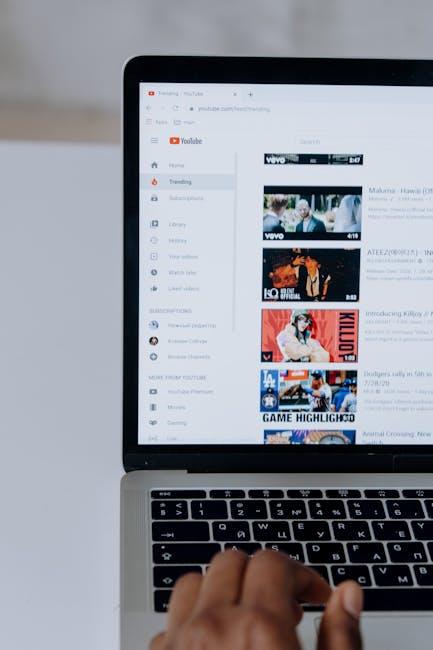
Imagine you’re about to dive headfirst into the vibrant world of YouTube streaming. You’re passionate, ready to share your creativity with the world, but there’s just one small hiccup: you can’t find your stream code! It’s like trying to bake a cake without knowing the secret ingredients. But don’t worry; you’re not alone in this quest. Unlocking your YouTube stream code is the key to broadcasting your genius to eager viewers everywhere. In this guide, we’ll explore not only where to find that elusive code but also why it’s essential for your streaming journey. So, let’s embark on this adventure together and get you set up to turn your ideas into captivating live streams!
Finding Your Stream Code in YouTube Studio

To unearth your stream code in YouTube Studio, start by heading to the Creator Studio. Once you’re in, navigate to the left sidebar and click on the Live section. Here, you’ll find your live stream dashboard, a hub buzzing with everything you need to go live. But the golden nugget you seek is nestled in the Stream Settings. Click on it, and voilà! Your magic code appears—a long string of numbers and letters that resembles an intricate puzzle waiting to be solved. It’s your unique identifier, enabling viewers to connect to your broadcast.
Now, keep in mind this piece of code is like the key to your streaming castle, so treat it with care! If you intend to use broadcasting software, copy that code and paste it into the appropriate field there. Just a tip: make sure you’re also aware of the Stream URL, which accompanies your stream code. Here’s a quick rundown of what to look for:
| Stream Element | Description |
|---|---|
| Stream Code | Your unique identifier for streaming. |
| Stream URL | Link for your broadcasting software. |
Decoding the Mystery of Stream Key Permissions

When diving into the world of live streaming on YouTube, one of the first hurdles you’ll encounter is understanding stream key permissions. Imagine your stream key as a secret handshake that allows you to enter the bustling world of viewers and interaction. It’s crucial because this little piece of digital code is what links your streaming software, like OBS or Streamlabs, to your actual YouTube channel. Lose it, and you could find yourself locked out of your own show! So, what’s the deal with permissions? Well, not every user can just waltz in with a stream key; only the channel owner or anyone they’ve granted access to can use it which keeps your broadcasts safe.
To make sure you’re good to go, you’ll need to check your account settings. Head to YouTube Studio, tap into the “Settings,” and check the “Stream” section. Here’s where you’ll find your stream key and can adjust permissions if necessary. But remember, granting access is like giving someone the key to your treasure chest—choose wisely! You can also set limits on who can play with your stream settings. Just keep in mind that sharing your stream key can lead to unauthorized streams that could tarnish your channel’s reputation. It’s all about balancing accessibility with security, so ensure that only trusted hands get to crack that code!
Optimizing Your Stream Settings for Maximum Engagement

Finding that sweet spot for your stream settings can make the difference between viewers sticking around or clicking away. Start by adjusting your bitrate; too high and you could push viewers away if their internet connection isn’t robust enough, too low and your stream might end up looking like a blurry mess. The goal is to find a balance that maximizes quality without sacrificing accessibility. Play around with these settings:
- Resolution: Aim for 1080p for crisp visuals.
- Frame Rate: 30fps is standard, but 60fps can elevate watching experiences, especially for action-packed streams.
- Bitrate: A good range is usually between 3000 to 6000 kbps, depending on your internet speed.
Moreover, don’t overlook the importance of audio quality in engagement. Viewers are often less forgiving about poor sound compared to poor visuals. Make sure to adjust your audio settings to enhance clarity and avoid background noise. Consider using an audio mixer or enhancing your microphone settings. Here’s a simple comparison of audio formats that might work for you:
| Audio Format | Quality | Use Case |
|---|---|---|
| MP3 | Good | General streaming |
| WAV | Excellent | High-quality production |
| OGG | Very Good | Gaming streams |
Troubleshooting Common Issues with Your Stream Code

We’ve all been there—you’re prepped for your big YouTube stream, but your stream code is acting like a stubborn lock without its key. First thing’s first, double-check your stream settings. Sometimes, a simple slip-up can throw a wrench in the works. Ensure that:
- Your stream key is copied correctly—no extra spaces or hidden characters.
- The server URL is precisely as specified in your streaming software.
- You’re using the correct protocol (RTMP, for instance) based on your setup.
It’s a lot like baking a cake; if one ingredient is off, you might end up with a flop instead of a masterpiece!
If you’re still running into headaches, it might be time to check your internet connection. Bandwidth fluctuations can be a sneaky culprit behind buffering or connection drops. Make sure you have a stable connection and consider:
- Wired connections over Wi-Fi for that extra reliability.
- Closing any background applications that may hog bandwidth.
- Testing your speed to ensure it meets the required upload speed for streaming.
Remember, even the smoothest streams can stumble without the right foundation!
Key Takeaways
As we wrap up this deep dive into unlocking your YouTube stream code, it’s clear that navigating the world of live streaming can feel a bit like finding your way through a maze. But fear not! Armed with the tips and tricks we’ve shared, you’re now ready to conquer this digital landscape. So, whether you’re gearing up for a casual gaming session or a full-blown tutorial, your stream code is just a few clicks away.
Remember, every great journey begins with a single step (or stream, in this case). Don’t hesitate to explore, experiment, and let your unique personality shine through your content. After all, it’s not just about the code; it’s about connecting with your audience and creating an experience they won’t forget.
So go ahead, unleash your creativity, and don’t forget to share your journey with us. What have you learned? What challenges did you face? Your story could inspire others to take the plunge into the exciting world of streaming—who knows, you might just become the next big sensation on YouTube! Happy streaming, and may your views soar high!