
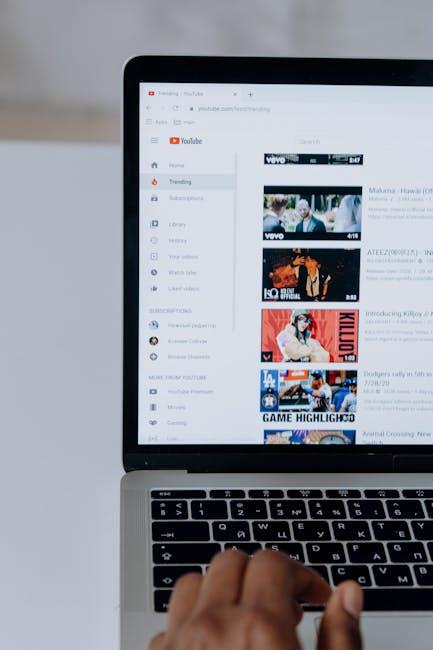
YouTube can feel like a treasure trove of videos just waiting to be discovered, but sometimes those pesky restrictions can keep you from diving into all the content that tickles your fancy. If you’ve ever stumbled upon a video that’s been blocked for one reason or another, you know how maddening that can be. But fear not! Disabling Restricted Mode is easier than you might think, and we’re here to guide you through those simple steps. So, grab your device, settle in, and let’s unlock the full potential of your YouTube experience together! Get ready to explore without limits!
Understanding Restricted Mode and Its Purpose

Restricted Mode on YouTube acts like a safety net, filtering out content that may not be suitable for everyone. Think of it as a parental guidance setting that helps keep your viewing experience cleaner and tailored to a more general audience. This feature is often enabled in schools, libraries, and other public places where the concern for appropriate content is heightened. By limiting access to specific videos, Restricted Mode aims to foster a healthier viewing environment, especially for younger audiences. But does it really keep everything unsuitable at bay? Not entirely; it’s more like putting up a fence rather than building a wall—some content may still sneak through, and others may be blocked even if they’re perfectly harmless.
When you dive into the settings to disable this mode, you’re taking back control over what you watch on YouTube. Imagine having the key to a library where every section is open for you to explore freely, rather than being stuck in a less colorful, more restricted area. Without this filter, you can access a wider array of videos that can inspire, educate, or simply entertain. Whether it’s viral challenges, in-depth tutorials, or thought-provoking documentaries, having the freedom to choose what entertains or informs you can be a game changer. Just remember, with great power comes great responsibility; browsing the unrestricted world means being mindful of what you choose to consume!
Navigating YouTube Settings Like a Pro

- Open YouTube: Fire up the app or head to the YouTube website.
- Sign In: Make sure you’re logged into your Google account—that’s your backstage pass to tweak all the settings.
- Navigate to Settings: Click on your profile picture in the top right corner and select “Settings” from the dropdown.
Once you’re in the settings, look for the “General” section. It’s like the home base for all your preferences. Here’s the kicker: you’ll see an option called “Restricted Mode.” This nifty feature is designed to filter out potentially mature content. But if you’re ready to unlock the full treasure chest of YouTube’s content, simply toggle that off. Ta-da! You’re now free to browse without those pesky restrictions popping up like unwanted ads.
| Step | Action |
|---|---|
| 1 | Open YouTube Settings |
| 2 | Click on “General” |
| 3 | Toggle “Restricted Mode” Off |
Don’t forget to hit “Save” if prompted; otherwise, your settings might slip away like a greased pig! Play around and explore what else the settings menu has to offer. Whether it’s adjusting your playback preferences or managing notifications, customizing your experience is just a few clicks away.
Step-by-Step Guide to Disable Restricted Mode

Ready to dive into the free-spirited ocean that is YouTube without those pesky restrictions? First, you’ll want to hop on your favorite web browser and head on over to the YouTube website. Once you’re there, it’s time to log into your account. Look for the profile icon in the upper right corner—click on that bad boy. From the dropdown menu, select Settings. You’re almost there! In the Settings menu, scroll down until you see General. That’s your gateway to control what you see. Click on it, and you’ll find the Restricted Mode toggle waiting for your command.
Now that you’ve located the Restricted Mode option, the next move is as simple as flipping a switch. Just toggle that switch to disable Restricted Mode. You might want to make sure that it’s set to OFF. While you’re at it, keep in mind: if you’re using a publicly shared network (think school or work), this option might be locked up tighter than a clam, thanks to the network administrator. If you’re on your personal network, you’re golden! No more censorship on your viewing choices—time to explore and enjoy a universe of content!
Troubleshooting Common Issues You Might Encounter
If you’ve tried to disable Restricted Mode and nothing seems to change, don’t throw in the towel just yet! Check to ensure you’re signed into your YouTube account. Sometimes, being logged out can cause Restricted Mode to persist. Also, clear your browser’s cache and cookies—think of it like giving your browser a fresh start. If you’re on a school or workplace network, there’s a chance that administrators have enforced these settings. So, reaching out to your IT support squad might be your best bet if that’s the case. Here are some quick things to look out for:
- Account settings: Verify you’re using the correct Google account.
- Browser: Update or switch browsers as sometimes issues can arise from older versions.
- Network restrictions: Confirm if network policies are the dry sponge soaking up your freedom.
Still having issues? It might be time to check the device you’re using. Whether you’re on a mobile or desktop, each platform has quirks. Mobile devices can sometimes have separate settings, hidden away under the app’s “Settings” menu. Look out for any updates pending for your YouTube app as well—updates often come with fixes for pesky bugs. Additionally, consider disabling any VPNs or proxies temporarily to rule them out as troublemakers. Here’s a quick overview of steps you can follow:
| Device | Steps to Disable Restricted Mode |
|---|---|
| Mobile | Go to Settings > General > Restricted Mode. |
| Desktop | Click on your profile icon > Settings > Restricted Mode. |
To Conclude
And there you have it! Disabling Restricted Mode on YouTube is as easy as pie when you know the ropes. Whether you’re looking to explore a broader range of content, catch up on those hilarious videos everyone’s raving about, or just dive into some deep dives without running into walls, you’re now equipped with the tools to make it happen. Just remember, it’s all about personal choice and ensuring you’ve got the right settings for what you’re comfortable with.
Next time you find yourself facing those pesky restrictions, just pull out these steps like a trusty toolbox, and get back to enjoying the content you love. So, what’s the first video you’re going to watch now that you have the freedom to choose? Go ahead, hit play, and happy watching!