

Picture this: you’re curating a captivating online exhibit using Omeka, and you suddenly realize that a video could elevate your storytelling. You’ve got the perfect YouTube clip ready to go, but the thought of embedding it feels like trying to solve a Rubik’s Cube blindfolded. Fear not! Embedding YouTube videos into your Omeka projects is not only doable, but it can be downright easy. In this guide, we’ll walk you through the process step-by-step, stripping away the technical jargon and offering up simple solutions. Whether you’re a tech-savvy whiz or a total newbie, by the end of this article, you’ll feel like embedding videos is a walk in the park. So let’s dive in and turn your Omeka project into an engaging multimedia experience!
Getting Started with Omeka: Your Gateway to Digital Storytelling
Embedding YouTube videos into your Omeka project is as straightforward as pie! Once you’ve got your video selected, just copy the URL from the address bar. Next, you’ll want to navigate to the item where you intend to embed the video. Click on the “Add Media” button, which pops up a window where you can select “From URL”. Paste that YouTube link right in there—it’s like giving your project a little sprinkle of magic. But wait, there’s more! To really customize how your video appears, consider using the Embed feature. You can grab the embed code directly from YouTube, allowing you to tailor the size and display options to your liking. Your digital storytelling needs all the flair it can muster, and a dynamite video can really bring a project to life!
To ensure everything flows smoothly, here are a few tips for a seamless video embedding experience:
- Check Your Links: Always double-check that your video URL is correct to avoid any hiccups.
- Responsive Design: Use CSS to make sure your videos look great on all devices—nobody wants to squint at a tiny screen!
- Accessibility Matters: Don’t forget to include captions or transcripts for those who are hearing impaired.
- Test It Out: After embedding, view your item to ensure everything works as intended.
| Tip | Description |
|---|---|
| Preview Before Publishing | Always preview your items to see how the embedded video looks in context. |
| Use Playlists | If you have multiple videos, consider embedding a playlist for a seamless viewing experience. |

Simplifying Video Embedding: Step-by-Step Guidance for YouTube Integration
Embedding YouTube videos into your Omeka site is a breeze once you get the hang of it. First things first, locate the YouTube video you want to share and grab the embed code. To do this, click on the Share button under the video, then select Embed. You’ll see a snippet of code pop up. All you need to do is copy that code. Next, head over to your Omeka admin panel, navigate to the item where you want the video to appear, and paste the embed code into the Description or a custom HTML block. It’s like tacking up a picture frame – you’re just putting that video right on your virtual wall!
But what if you want to customize how it looks? You can tweak the embed code to fit your space perfectly. For instance, modify the width and height parameters to suit your theme. Maybe you want it wider for a fullscreen look or just a small box to keep it subtle. Here’s a handy checklist for quick edits:
- Width: Adjust to make the video fit nicely.
- Height: Keep proportions in check – you don’t want it squished!
- Autoplay: Consider if you want the video to start automatically – it can grab attention!
Experimenting a bit with these settings can make your embedded video pop right off the page, ensuring your viewers stick around for the visuals and engagement you want to create.
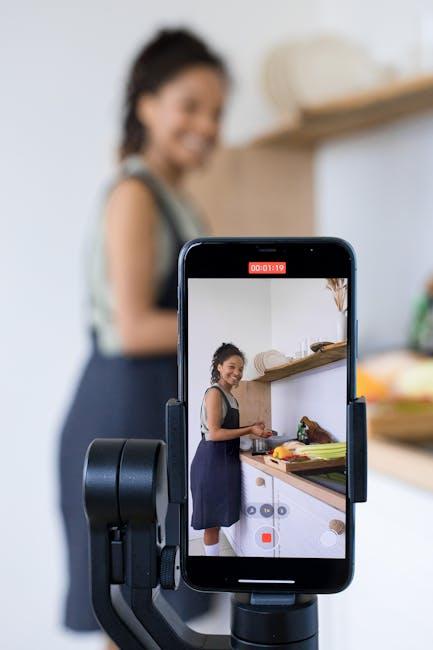
Enhancing Engagement: Best Practices for Effective Video Use in Your Omeka Collections
In today’s digital landscape, incorporating videos into your Omeka collections can really boost user engagement and bring your content to life. Think of videos as the spark that ignites curiosity; they grab attention in ways that static images simply can’t. To make the most out of your video content, consider these best practices:
- Choose Relevant Videos: Ensure that the videos you embed directly relate to your collection topics, enriching the narrative rather than distracting from it.
- Optimize Loading Time: Compress your videos or use links to reputable platforms like YouTube to avoid lagging; no one likes a slow site!
- Utilize Captions and Transcripts: Accessibility matters—adding captions helps it reach a broader audience and enhances SEO.
- Highlight Key Points: Use tools to annotate sections of your video, pointing out essential details for your viewers.
Furthermore, embedding YouTube videos in Omeka isn’t just about slapping a link on your page; it’s about creating a seamless viewer experience. You can achieve this by utilizing HTML5 video players which allow for a more integrated presentation. Here’s a quick way to organize your video content for better user interaction:
| Video Title | Purpose | Link |
|---|---|---|
| Behind the Scenes | Showcase your curation process | Watch Here |
| Expert Interviews | Deep dives into collection stories | Watch Here |
| Tutorial Videos | Guide users on navigating collections | Watch Here |
This way, you not only enhance user engagement but also guide them through a cohesive storytelling experience that resonates. In essence, treat your videos as part of your collection—key pieces of the puzzle that draw users deeper into your digital narrative.

Troubleshooting Common Challenges: Tips for a Smooth YouTube Experience
When you’re embedding YouTube videos in Omeka but your videos just won’t play or show up, frustration can set in. Here are a few ideas to keep things breezy:
- Check Your URL: Make sure the YouTube link you’re using is in the right format. A common mistake is inadvertently using a search link instead of the actual video link.
- Browser Compatibility: Sometimes your browser can be the villain. Try clearing your cache or switching to a different browser to see if that clears things up.
- Plugin Conflicts: If you’ve added new plugins recently, disable them one by one to sniff out any troublemakers that might be causing issues.
If you’re still running into roadblocks, keep an eye on your embed code and settings. Get this:
| Aspect | What to Check |
|---|---|
| Embed Code | Ensure it’s correctly formatted, including width and height attributes for a balanced display. |
| Privacy Settings | Verify your video isn’t set to private; it needs to be public or unlisted for embedding to work. |
With just a little digging, you can resolve most issues and get back to sharing or presenting your content smoothly!

The Conclusion
And there you have it—embedding YouTube videos in Omeka like a pro! It’s just like driving a car; once you get the hang of it, it feels second nature. You’ve transformed your digital storytelling into a dynamic experience that not only captivates your audience but also enriches their understanding. So go ahead, indulge in that creativity! Experiment, tweak, and let your collection come alive with video content that resonates.
Remember, each video is a doorway into another world, inviting your viewers to step in and explore. Whether you’re showcasing historical archives, art exhibits, or educational materials, the power of multimedia can elevate your project to new heights. So what are you waiting for? Dive in, have fun, and turn your Omeka site into a vibrant hub of interaction and engagement. Happy embedding!