
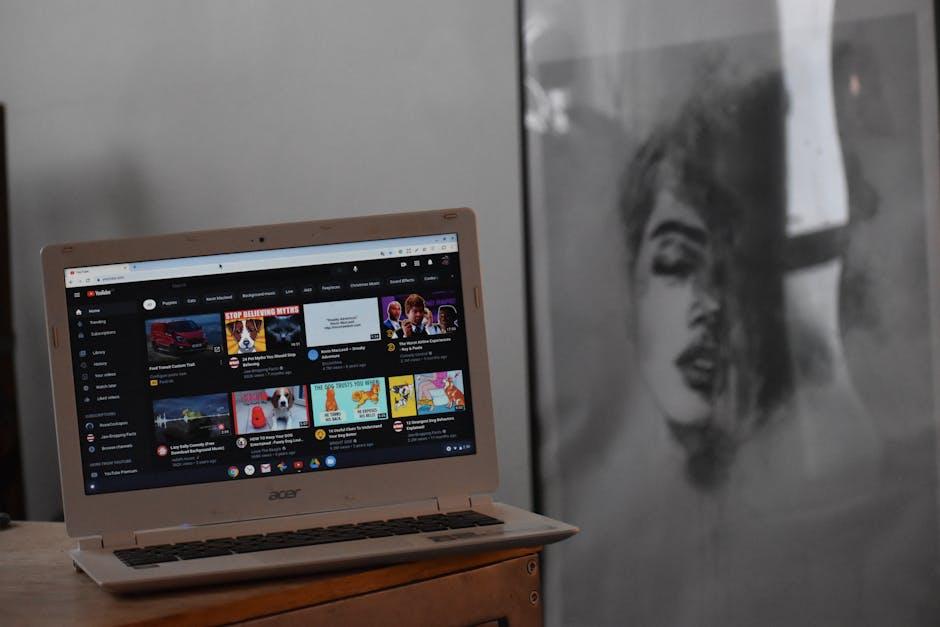
Ever found yourself watching a YouTube video and thought, “Wow, that’s a fantastic quote!” or “I need to remember that tip!” but then… poof! It’s gone as soon as the video ends? If you’ve ever wished you could grab those golden nuggets of wisdom without breaking a sweat, you’re in for a treat! Snagging text from YouTube videos doesn’t have to feel like trying to catch smoke with your bare hands. With the right tools and tricks, you can easily pull those gems right out of the screen. Let’s dive into some super simple ways to become a pro at snatching text from YouTube videos like a seasoned expert!
Unlocking the Power of YouTube’s Transcript Feature for Quick Text Grabs
YouTube’s transcript feature is like a hidden treasure chest just waiting to be opened! When you come across a video that’s packed with nuggets of wisdom or just some info you can’t jot down fast enough, the transcript can be your best buddy. Accessing it is a breeze! Just click on the three little dots below the video, and bam—you’ll see the option to open the transcript. It’s all there in bite-sized sections, perfectly timed with the video. You can easily scroll through, find the juicy bits you need, and copy them without having to pause and rewind a million times. Isn’t that a game-changer?
But wait, the fun doesn’t stop there. You can also use the search function within the transcript to zero in on specific keywords. This means no more endless scrolling! Plus, if you fancy taking notes or compiling information, you can simply copy and paste what you need into your document. Imagine how much time you’ll save! Here are a few quick tips to maximize your transcript experience:
- Keep It Clean: Only grab the parts you really need.
- Highlight Key Points: Use different colors or markers in your notes to emphasize important info.
- Organize By Topics: If it’s a lengthy video, categorize your text grabs for ease of use later.

Mastering Screen Capture Tools for Snappy Snippets of Video Content
Harnessing screen capture tools is like being a wizard waving your magic wand to snag the best moments from videos. Whether you’re aiming to pull out quotes, create quick snippets for social media, or just keep a handy reference, there are some nifty options at your disposal. Tools like Snagit, OBS Studio, or even your operating system’s built-in snipping tools can transform how you extract information from YouTube videos. Here’s how to make the most of them:
- Choose the Right Tool: Pick a tool that fits your needs—lightweight choices for quick captures or comprehensive software for extensive editing.
- Customize Your Settings: Adjust formats, resolution, and capture areas to suit your content style.
- Add Annotations: Use text or arrows to highlight essential points in your captures for clarity.
Once you’ve got the hang of capturing snippets, don’t forget to organize your findings! A simple table can turn chaos into clarity, making it easy for you to review your content later. Here’s a quick layout to visualize your captures:
| Snippet Topic | Time Stamp | Purpose |
|---|---|---|
| Funny Moments | 02:15 | Social Media Post |
| Key Takeaways | 05:30 | Blog Reference |
| Expert Opinions | 08:45 | Video Compilation |

Diving into Third-Party Apps That Make Text Extraction a Breeze
Diving into the realm of third-party apps is like opening a treasure chest filled with tools designed to simplify your life. These applications often come equipped with features that not only make text extraction a breeze but also enhance your overall experience. Picture this: you find a killer YouTube video with a lecture filled with golden nuggets, but you can’t jot down notes fast enough. Fear not! Tools like Otter.ai, Sonix, and Happy Scribe swoop in to save the day, transforming the spoken word into written magic. With just a few clicks, these apps capture everything from deep thoughts to quick quips, letting you focus on what really matters—gathering knowledge, not typing it all out manually.
These apps vary in functionality, but they share the goal of simplifying text extraction. Take a look at the highlights of a few popular choices:
| App | Features | Price |
|---|---|---|
| Otter.ai | Real-time transcription, collaboration tools, cloud storage | Free for basic, premium starts at $8.33/month |
| Sonix | Multi-language support, powerful editing tools, automatic subtitles | Pay-as-you-go from $10/hour |
| Happy Scribe | Text and subtitle extraction, language support, customizable templates | $12/hour of audio |
With such a variety, surely one of them will strike your fancy. Whether it’s a full-fledged lecture or a jam-packed tutorial, these tools empower you to capture every important word without breaking a sweat. So, why get tangled up in endless notes when you can let technology lend you a hand? Choose your weapon wisely and dive into the world of text extraction with confidence!

Tips and Tricks for Organizing and Utilizing Your Extracted Text Like a Pro
Once you’ve snagged that juicy text from a YouTube video, it’s time to get organized! Creating a digital filing system might sound dull, but think of it like rearranging your closet. You want everything neat and easy to find. Use folders for different topics or projects, and don’t hesitate to label them clearly. Tools like Google Docs or Notion can become your best friends here. You can even color-code them—consider it like giving each topic its favorite outfit! Having a structured system means when inspiration strikes, or when you’re in a pinch, your info is just a click away. What’s the point of gathering all that awesome text if you can’t access it smoothly when you need it?
Next up, let’s talk about how to utilize that text effectively. Think of it as the secret ingredient in a recipe; it needs to blend well with what you’re cooking up. Create summaries, notes, or even infographics that convert your extracted text into more digestible info. Tools like Canva can be super handy for this! And don’t forget to share it with your network! You could create a mini-blog or social media series diving into key themes or quotes from the videos. By doing this, you’re not just hoarding knowledge; you’re becoming a part of the conversation. Remember, it’s all about keeping the flow going and making sure that text works for you, not the other way around.

Final Thoughts
And there you have it, folks! You’re now armed with several easy-peasy techniques to snag text from YouTube videos like a total pro. Whether you’re looking to capture those golden nuggets of wisdom from a lecture, jot down a quote that hit you right in the feels, or extract subtitles for your next big project, these tips have got your back.
Remember, it’s all about making these tools work for you, turning what you see and hear into something you can use and share. So, go ahead, dive into those videos with gusto and let the world of content open up to you! Feel free to drop your own tips or ask questions in the comments—this little community thrives on sharing! Happy text-snatching! 🎉