

Ever clicked on a YouTube video, hit that fullscreen button, and suddenly felt like you’re watching through a warped funhouse mirror? You’re not alone. Many folks have had that surreal experience where the video just doesn’t seem to sit right, leaving you wondering if your device is playing tricks on you or if it’s something deeper at play. Let’s dive into the quirky world of fullscreen viewing on YouTube, unraveling the mysteries behind those strange visual abnormalities and help you get back to enjoying your favorite content without the oddball interruptions. Get ready to learn what’s going on behind the scenes and how to fix those fullscreen frustrations!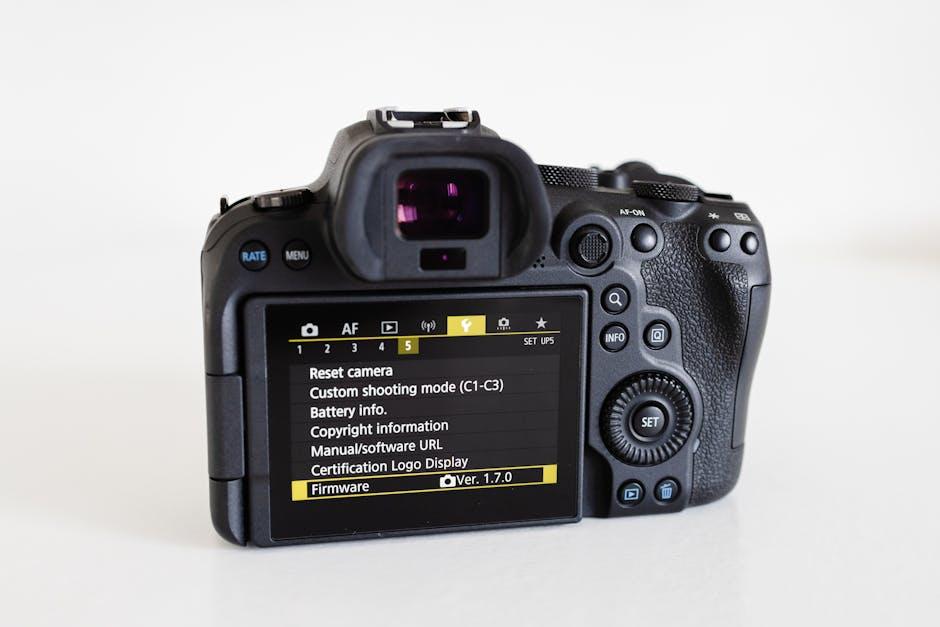
Understanding Display Settings for a Flawless YouTube Experience
Many users have experienced that moment of frustration when YouTube looks a bit off in fullscreen mode. Often, it’s not the video itself but the display settings that are causing those oddities. Have you ever checked your resolution settings? High Definition (HD) is your best friend when it comes to watching videos without distortion. Lower resolutions can make things look pixelated or blurry, especially on larger screens. You might also want to consider adjusting the aspect ratio. In fullscreen mode, videos can sometimes lose their proportion, stretching the image or leaving black bars at the sides. Always double-check your settings to ensure you’re getting the clearest picture possible.
Another factor to consider is your device’s display settings. Different operating systems and screens have their own quirks. For instance, if you’re watching on a laptop and the video appears to be cropped or misaligned, try toggling between various screen display options. It’s like adjusting the sails on a boat to catch the wind just right. If you’re using a smart TV, ensure that any scaling options are properly configured. Here’s a quick checklist to help you optimize your YouTube experience:
- Resolution: Set to 1080p or higher if supported.
- Aspect Ratio: Check for options like ‘Fit to Screen’.
- Device Display Settings: Tweak them according to your device type.
- Browser Zoom Level: Ensure it’s set to 100%.
| Common Issues | Quick Fixes |
| Video appears zoomed in | Adjust the aspect ratio settings |
| Image quality is poor | Switch to HD resolution |
| Screen flickers | Update graphics drivers |
The Role of Your Monitor’s Resolution and Aspect Ratio
When you’re watching videos on YouTube and everything seems stretched or shrunk, it’s often due to a mismatch between your monitor’s resolution and aspect ratio. Think of your screen like a frame for a painting; if the frame isn’t the right size, the masterpiece inside can look off-kilter. Full HD (1920×1080) is the golden standard these days, but if you’re using an ultra-wide monitor or something with a different ratio, it can create strange visual effects. Yikes! It’s like trying to fit a square peg in a round hole—doesn’t quite work out, does it?
Furthermore, understanding how these two elements play together can make a huge difference in your viewing experience. A higher resolution means more detail, while the aspect ratio dictates how that detail is displayed. Ideally, you want to have a perfect match between your monitor and the video content. Here’s a quick comparison of common resolutions and their aspect ratios:
| Resolution | Aspect Ratio |
|---|---|
| 1920×1080 | 16:9 |
| 2560×1440 | 16:9 |
| 3840×2160 | 16:9 |
| 2560×1080 | 21:9 |
If you notice that some videos look stretched or not as sharp as they should, it’s time to tweak those settings. Check your display settings, and you might just discover the magic number that gives you a crystal-clear, full-screen experience!
Addressing Browser Compatibility and Performance Issues
Experiencing an unusual view on YouTube while in fullscreen mode can be annoying, right? One of the primary culprits behind this phenomenon often involves browser compatibility. Different web browsers render videos differently, leading to quirks in how fullscreen mode displays. For instance, what’s perfectly clear in Chrome might look distorted in Firefox or Safari. If you’re noticing odd colors, stretched images, or even laggy playback, it could mean your browser isn’t playing nice with YouTube. To tackle this, consider clearing your browser’s cache or switching to a different browser to see if it resolves the issue.
Don’t overlook performance issues that can arise from your device or internet connection. Sometimes, a sluggish connection can cause fullscreen playback to stutter, making it seem like something’s off with the video itself. To enhance your experience, try the following:
- Restart your router to boost your connection.
- Close any unused tabs or applications to free up resources.
- Enable hardware acceleration in your browser settings.
Also, consider keeping your browser updated to ensure you’re getting the latest fixes and enhancements. A little tech maintenance can go a long way in getting you back to that seamless viewing experience!
Simple Fixes to Enhance Your Fullscreen Viewing Delight
Ever found yourself staring at your screen, wondering why your YouTube videos look more like a funky art project rather than cinematic magic when you hit that fullscreen button? It’s like putting on a pair of glasses that aren’t quite right! You can quickly enhance your viewing experience with a few tweaks to your settings. Start by ensuring your browser is up to date, as outdated versions can lead to janky playback and weird aspect ratios. Also, make sure you’re not trying to squeeze a HD video into an SD frame—clear those cache files and cookies, and let your browser breathe. It’s like decluttering your closet; sometimes you need a little spring cleaning to make space for the good stuff!
If you’ve tried those basic adjustments and things are still feeling off, dive into your YouTube settings. Select Quality and pick the highest resolution available for your video. You wouldn’t watch a blockbuster on a flip phone screen, right? While you’re at it, take a closer look at your device’s display settings, too. Sometimes the video is perfect, but your screen is playing tricks on you! Ensuring that your display is set to the correct aspect ratio can work wonders. Here’s a quick checklist to keep handy:
- Browser Version: Make sure it’s the latest.
- Clear Cache: A quick spring cleaning helps!
- Video Quality: Set it to the highest resolution.
- Display Settings: Confirm the right aspect ratio.
In Summary
So, there you have it! If your YouTube videos feel like they’re stuck in some weird dimension when you hit that fullscreen button, don’t sweat it! Now you know it could be anything from a funky internet connection to a browser that’s about as outdated as your grandma’s flip phone. Whether it’s a resolution hiccup or a setting gone rogue, you’ve got the tools to tackle the issue head-on.
So next time you’re about to bliss out on your favorite cat video or the latest gaming stream, keep these tips in mind. Dive into those settings, make sure everything’s up to snuff, and you’ll be back to watching in glorious, unobstructed beauty in no time. Don’t let a little oddity ruin your binge-watching marathon! Happy viewing!