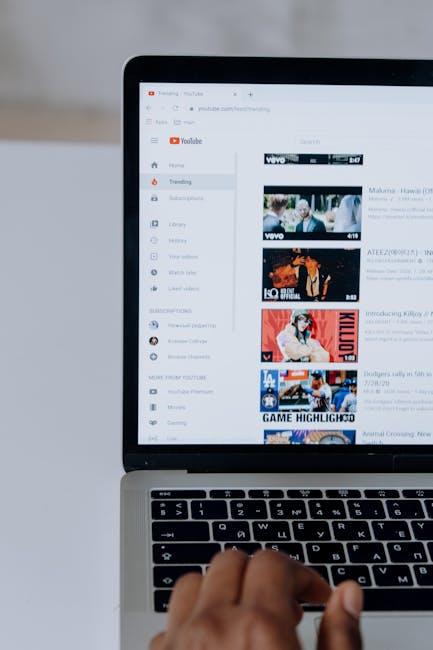
You ever find yourself jamming out to your favorite tracks on YouTube, only to be shut down when you accidentally switch apps? Frustrating, right? It’s like having a party where the music cuts out every time you want to grab a snack! Well, good news, my fellow YouTube lovers: there’s a way to keep the beats rolling while you multitask on your iPhone. Let’s dive into the world of background playback and unlock your YouTube experience, so you can enjoy those killer playlists, podcasts, or whatever tickles your fancy—without missing a beat. You’re just a few taps away from endless enjoyment, whether you’re scrolling through social media or answering emails. Ready to level up your YouTube game? Let’s get into it!
Mastering YouTubes Background Play Feature for iPhone Users
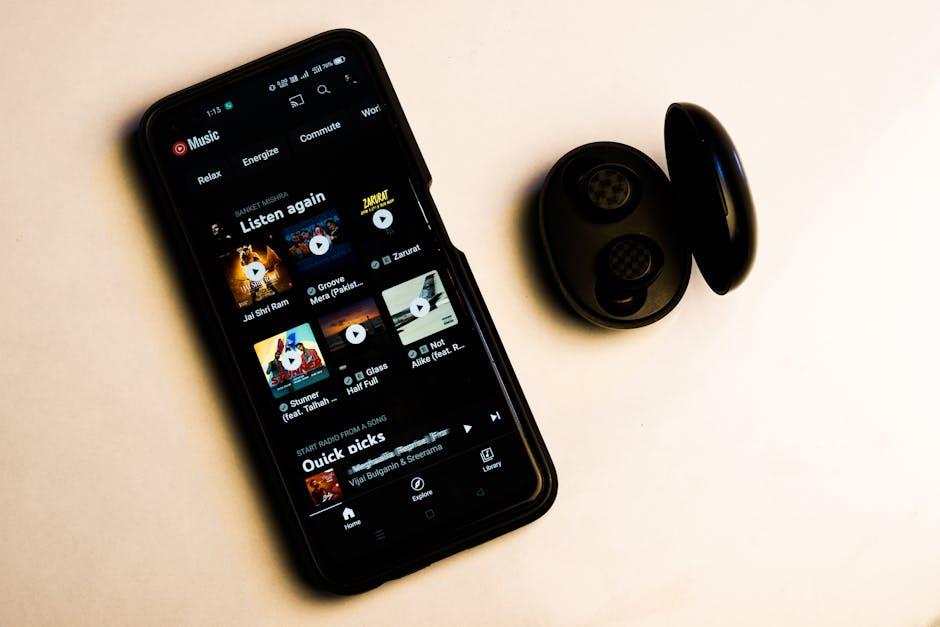
Did you know that you can enjoy your favorite YouTube content while multitasking on your iPhone? It’s like having your cake and eating it too! Background play is a game changer if you love listening to music or podcasts on YouTube but need to check your messages or shift gears to another app. To unlock this feature, first ensure you have a YouTube Premium subscription, which allows seamless background playback without any interruptions from ads. Once you’ve got that sorted, simply launch the YouTube app, choose your video, then hit play and switch to another app. Voilà! Your video continues to play in the background, letting you engage with other tasks while soaking in the audiovisual goodness.
But what if you’re not ready to dive into premium territory? No worries! There are a few clever workarounds you can try. One popular method is utilizing the Safari browser. Just open Safari and go to YouTube’s website. Find your desired video, hit play, then switch to your home screen. You’ll see the music controls pop up on your lock screen or in the Control Center, allowing you to control playback without needing to keep the browser window active. Here’s a quick summary of both options:
| Method | Description |
| YouTube Premium | Official method for background play without ads. |
| Safari Workaround | Play videos via Safari and control from the home screen. |
Exploring Third-Party Apps for Seamless Background Audio

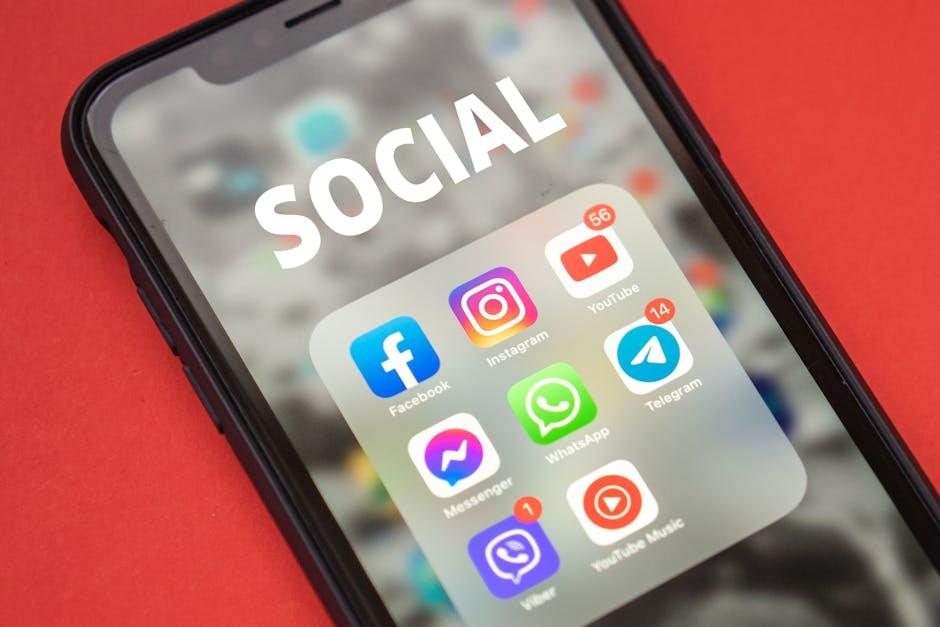
If you’re tired of your YouTube videos pausing the second you switch apps, it’s time to explore some third-party options that make background audio a breeze. Several apps work as a charm, allowing you to listen to your favorite tunes or podcasts without the hassle of keeping your screen on. Consider checking out YouTube Vanced, which is a powerful modification of the original app. It not only enables background play but also includes ad-blocking features—who wouldn’t love that? Other popular options include Musico, which merges your listening experience with video capability, and VidMate, offering downloadable audio and video files.
Want to tap into even more creative juices? Try Chrome or Safari’s private browsing mode where you can play YouTube videos while multitasking. Here’s a quick overview of some great picks:
| App Name | Background Play | Ad Blocker | Free Version |
|---|---|---|---|
| YouTube Vanced | ✅ | ✅ | Yes |
| Musico | ✅ | ❌ | Yes |
| VidMate | ✅ | ✅ | Yes |
| Chrome/Safari | ✅ | ❌ | Always Free |
Using these apps can transform your experience, turning that endless scrolling into a seamless audio adventure. So why not dive in, try them out, and discover what keeps your beats alive while you go about your day? After all, who says you can’t have a personal DJ while you’re texting or working on that important project?
Tips and Tricks for Enhancing Your YouTube Experience on iOS
Maximizing your YouTube experience on iOS can really elevate your viewing pleasure. For starters, one of the best ways to enhance this experience is by enabling background playback. If you’re a YouTube Premium member, congratulations! Just simply head to Settings, then go to Background & Downloads, and you’ll find the Background Play option. But what if you’re not a Premium member? Don’t fret! You can use the Safari browser to sneak in a background play. Just open YouTube in Safari, start your video, and then hit the home button or swipe up to go to your Home Screen. Your video will pause, but you can bring up the Control Center and hit Play to resume audio while multitasking.
Another nifty trick is to customize your YouTube layout. Have a look at your Subscriptions and use the Library tab to organize your most-watched playlists and channels. YouTube also allows you to download videos for offline access, ideal for those on the go or with spotty Wi-Fi. To set it up, tap the Download button under a video, and choose your preferred quality. This means you can binge-watch your favorite series during your commute without interruption. By taking advantage of these tips, you’ll transform your iPhone into a seamless streaming machine!
Navigating YouTube Premium: Is It Worth the Investment for Background Play?

Investing in YouTube Premium can feel like tossing your hard-earned cash into a black hole, but let’s break it down. One of the biggest draws is background play, which lets you listen to music, podcasts, or any content while you multitask. Imagine scrolling through social media, checking your emails, or simply enjoying a sunny day at the park, all while your favorite videos play in the background. With the world buzzing around you, why not keep the good vibes rolling? Plus, YouTube’s ad-free experience means no interruptions—it’s like having VIP access to your favorite concert! 🎶
Now, let’s weigh the pros and cons: You’ll get uninterrupted access, offline downloads, and a sleek interface. On the flip side, the monthly fee can feel a pinch, especially if you’re already juggling multiple subscriptions. If you’re a frequent user, the investment may turn out to be a steal, while casual viewers might find it hard to justify. So, think about how often you’ll use these features! Here’s a quick overview:
| Benefits | Considerations |
|---|---|
| Ad-Free Experience | Monthly Subscription Fee |
| Background Play | Not Necessary for Casual Users |
| Offline Downloads | Can Be Accessed on Other Platforms |
Wrapping Up
And there you have it! Unlocking YouTube’s potential on your iPhone doesn’t have to be a headache. With just a few simple tricks, you can enjoy your favorite tunes and podcasts while keeping your hands free—perfect for multitasking or simply chilling out. So, next time you’re scrolling through YouTube, remember that you can turn it into a seamless audio experience. Whether you’re working on a craft project or just lounging in your living room, background playback can elevate your day. Don’t forget to share these tips with your friends—they’ll be thanking you later! Now, go forth and enjoy a world of uninterrupted listening; let those videos play in the background and make your iPhone your personal soundstage! Happy streaming!