Are you ready to take your YouTube game to the next level? If you’ve dipped your toes into the world of video editing with DaVinci Resolve, you might know that the export settings can feel like a maze at times. It’s like trying to find the right key for a treasure chest—one wrong turn, and you might end up with a video that’s less than cinematic. But fear not! In this article, we’re going to unlock the secrets of the perfect export settings that not only make your videos shine but also cater to YouTube’s picky algorithms. Whether you’re a vlogging newbie or a seasoned filmmaker, understanding these settings can be the difference between “Wow, that’s amazing!” and “What happened to the quality?” So, grab a cup of coffee, and let’s dive into the nuts and bolts of DaVinci’s export options. Your viewers will thank you!
Finding Your Ideal Resolution for Crystal Clear Videos
When you’re diving into the world of video editing, the export settings can feel like a labyrinth, right? It’s like hunting for the Holy Grail—everyone’s got their own opinion on what works best. To help clear the fog, why not start by identifying a few key factors tailored to your specific project needs? Focus on aspects like resolution, frame rate, and codec. For instance, if you’re uploading to YouTube, 1080p at 30 or 60 frames per second is often the sweet spot. Think of it as dressing your video in its Sunday best; you want it looking sharp but not overdone!
Moreover, don’t underestimate the power of bitrate and audio settings in creating that crystal-clear presentation. A higher bitrate means better quality but can also increase your file size. It’s a bit like choosing between a heavy winter coat and a lightweight jacket—it all depends on where you’re headed. To make your life easier, consider using the following export settings:
| Setting | Recommended Value |
|---|---|
| Resolution | 1920 x 1080 (1080p) |
| Frame Rate | 30 or 60 FPS |
| Codec | H.264 |
| Bitrate | 8-12 Mbps |
| Audio Bitrate | 320 kbps |
With these settings, you’ll be all set to make your video shine like a diamond on the screen. Plus, don’t forget to preview your export before hitting that final button. It’s kind of like trying on an outfit before heading out—the last thing you want is a surprise on the big day!
Choosing the Right Frame Rate to Match Your Style
When it comes to shooting videos, choosing the right frame rate can really set the tone for your creative vision. Think of it this way: frame rate works like the heartbeat of your video. A 24 fps (frames per second) rate brings that cinematic feel, creating a smooth and engaging experience that feels almost magical. It’s what you see in most movies. On the flip side, if you’re capturing action-packed scenes—maybe a thrilling skateboard trick or a fast-paced dance battle—60 fps can work wonders. It adds clarity and fluidity, allowing viewers to feel the rush of every movement. So, what’s your vibe? Are you going for a dramatic narrative or an exhilarating action sequence? The choice of frame rate will help you convey that story effectively.
Don’t forget, the ambient lighting and the setting in which you shoot can also influence your frame rate selection. If you’re shooting in low-light conditions, a slower frame rate—like 30 fps—might actually help you get cleaner images without too much noise. Conversely, when you’re filming outdoors in bright sunlight, bumping it up to 120 fps gives you the chance to create stunning slow-motion effects that can leave your audience in awe. To make your decision even clearer, consider this table that outlines the best frame rates for various styles:
| Style | Recommended Frame Rate |
|---|---|
| Cinematic Films | 24 fps |
| Interviews / Talking Heads | 30 fps |
| Action Scenes | 60 fps |
| Slow Motion Effects | 120 fps |

Balancing Compression and Quality for Seamless Uploads
Finding that sweet spot between compression and quality can feel a bit like walking a tightrope, right? On one hand, you want your video to look crisp and engaging, catching every detail without sacrificing anything in visual appeal. On the other hand, if your file size is too hefty, it could lead to frustrating upload times, buffering issues, or even downright incompatibility with YouTube’s requirements. So, how can you strike that balance? Start by considering the resolution and bitrate you choose for export. For most creators, a 1080p resolution at a bitrate of around 8-12 Mbps strikes a nice balance between quality and file size. Experimenting a little can go a long way; remember, it all depends on the type of video you’re uploading, whether it’s a fast-paced vlog or a serene nature documentary.
Another nifty trick is utilizing different export formats. While MP4 is the ubiquitous standard, consider integrating H.264 codec for optimal quality without breaking the bank on file size. Also, don’t overlook the audio settings—keeping your audio bitrate somewhere around 320 kbps maintains clarity and richness without monopolizing your file space. If you’re unsure where to start, here’s a quick cheat sheet:
| Video Resolution | Bitrate Range (Mbps) | Codec | Audio Bitrate (kbps) |
|---|---|---|---|
| 1080p | 8-12 | H.264 | 320 |
| 720p | 5-8 | H.264 | 192 |
| 4K | 25-50 | H.265 | 320 |
Optimizing Audio Settings for a Professional Finish
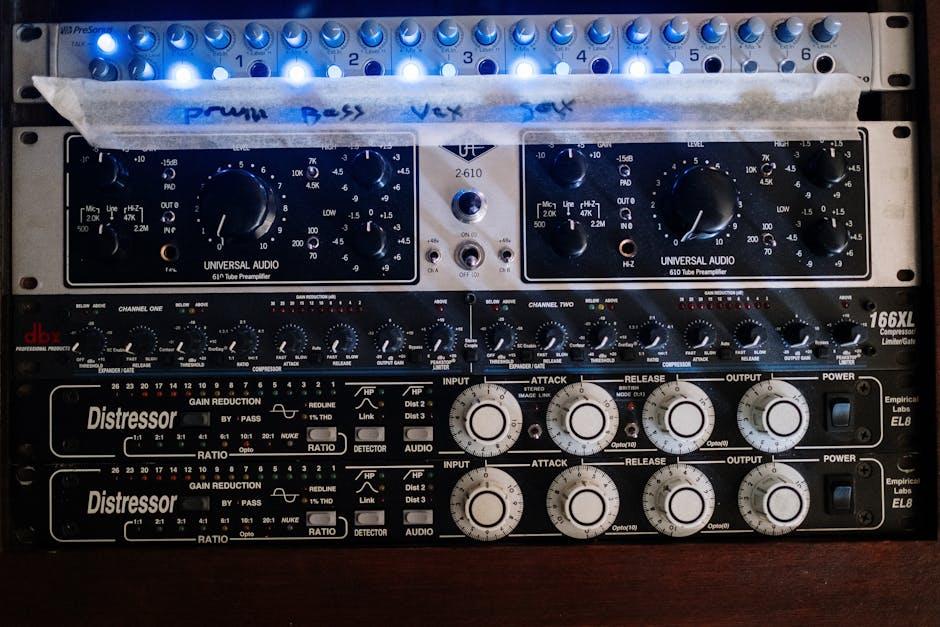
When it comes to achieving that polished audio for your YouTube videos, diving into the audio settings in DaVinci Resolve is crucial. Think of audio as the unsung hero of your content; if it’s off, even the most visually stunning videos might fall flat. Start by checking the sample rate and bit depth—ideally, you want 48 kHz and 24-bit. This combination delivers stunning clarity that makes your audience sit up and take notice. Don’t overlook using the Loudness Meter; it helps ensure you’re hitting the sweet spot for loudness standards on YouTube, generally around -14 LUFS. Feeling like an audio wizard yet?
Next, let’s polish things up a notch. Engage in a bit of equalization. Simple adjustments can eliminate those disruptive frequencies. If your recording has a bit too much bass, think about cutting around 200 Hz. Another great tool at your disposal is compression. By even out the dynamic range, you can prevent sudden loud bursts that might make viewers reach for the volume knob. Consider using a soft knee compression setting to keep the audio feeling natural. And don’t forget to export with lossless formats like WAV for the best quality; trust me, your subscribers will notice the difference!
Final Thoughts
And there you have it! You’re now armed with all the secrets to optimize your DaVinci Resolve export settings just like a pro. Whether you’re diving into gaming highlights, crafting a stunning vlog, or whipping up a cinematic masterpiece, getting your settings just right can really set you apart on YouTube.
Now, don’t be shy—experiment a little! Tweak those settings to find what sings best for your unique style and audience. Remember, every upload is a chance to connect, share stories, and show off your personality.
So go ahead and hit that export button with confidence! The digital world is your stage, and your content deserves to shine. And hey, if you found this guide helpful, feel free to spread the word—share it with fellow creators who might be in need of a little DaVinci magic. Until next time, happy editing, and may your views soar higher than ever! 🎬✨