
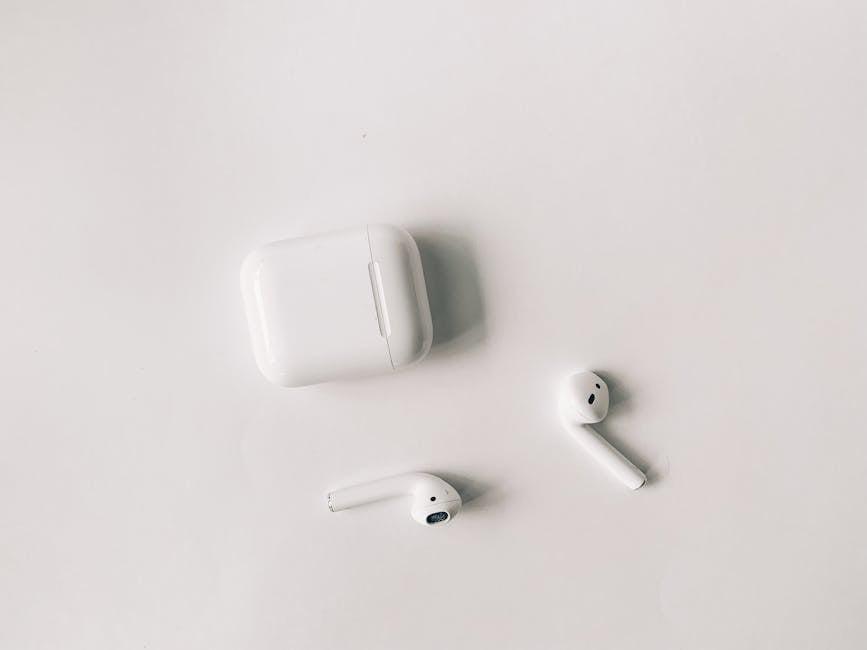
Ever found yourself in the middle of an awesome YouTube video, only to be rudely interrupted by your AirPods deciding it’s time to mute? It’s as if they have a mind of their own! Trust me, you’re not alone. That annoying little glitch can turn a good vibe into a frustrating experience faster than you can say “connectivity issues.” But don’t worry—that’s why we’re here. We’ll dive into the whys and hows of your AirPods muting during YouTube, and together, we’ll sort this out so you can enjoy your videos without a hitch. So, grab your AirPods, and let’s troubleshoot this mystery!
Understanding the Mysterious Mute: What Causes AirPods to Silence YouTube
Sometimes, those pesky AirPods can make you feel like you’re playing a game of hide-and-seek with your sound. So, why do they suddenly mute your YouTube videos? It’s likely due to a few common culprits. Bluetooth connectivity issues might be at play. Your AirPods could be having a hard time maintaining a solid connection, causing that frustrating silence. Additionally, audio settings on your device could be configured in a way that interferes with playback. Have you checked if you’ve accidentally hit the mute button, or if your device is set to “Do Not Disturb”? These little oversights can turn your cinematic experience into a quiet affair.
Another factor to consider is the infamous software glitches that sometimes plague both AirPods and your device. Updating your AirPods and the YouTube app to the latest version often helps. Sometimes it’s as simple as resetting your AirPods by placing them back in the case and reconnecting them. Battery level can also play a surprising role; if your AirPods are running low, they might not perform as expected. Keeping an eye on the battery levels and ensuring your earbuds are charged can save you from the inconvenience of unexpected silences. If these tips don’t resolve your issue, don’t hesitate to reach out to Apple Support for further assistance. You deserve to enjoy your favorite content without interruptions!

Tuning into Solutions: Quick Fixes for Your AirPods Mute Dilemma
If your AirPods are playing hide and seek with your audio on YouTube, it might be time to troubleshoot a bit. First off, check if your AirPods are fully charged. Sometimes, low battery can lead to unexpected mute situations. Also, inspect your connectivity—are they seamlessly connected to your device? A few steps you can try:
- Restart Bluetooth: Turn off Bluetooth on your device for a few seconds and then switch it back on.
- Forget and Re-Pair: Sometimes, a clean slate is all you need. Forget your AirPods in the Bluetooth settings and reconnect them.
- Software Update: Make sure your device’s software is up to date. This can solve many quirky issues with audio.
If the problem persists, examine any audio settings. It sounds silly, but sometimes you might have accidentally muted the app. Ensure that the media volume is up and that the app is allowed to access Bluetooth audio. Additionally, check out the settings on the YouTube app itself—it might have its own volume control feature that’s been silenced. Here’s a quick recap of settings to verify:
| Setting | Status |
| Bluetooth Connection | Active? |
| Media Volume | High? |
| YouTube Volume Control | Unmuted? |
| Device Software | Up to date? |

Optimizing Your Setup: Ensuring Seamless Sound Between AirPods and YouTube
To kick off your audio experience and tackle those pesky mute issues, ensure your AirPods are fully charged and properly connected. A low battery can lead to unwelcome interruptions, so give them a boost before diving into your YouTube binge. Also, double-check your Bluetooth connection. It’s often the small things that cause the biggest headaches—making sure your AirPods are selected as the audio source can save you from experiencing that frustrating silence while watching your favorite videos. You can quickly check this by heading into your device’s Bluetooth settings.
Sometimes, it’s not just the hardware but also the software at play. Ensure your device is running the latest version of its operating system. Incompatibilities can cause sound glitches, which are no fun at all! Here’s a quick rundown of software-related solutions to keep the sound flowing:
- Restart your device: This simple trick can resolve many connectivity issues.
- Reset your AirPods: A fresh start might just do the trick—hold the setup button until the light blinks amber.
- Clear your app cache: Go into your device settings and clear out any unwanted data affecting performance.
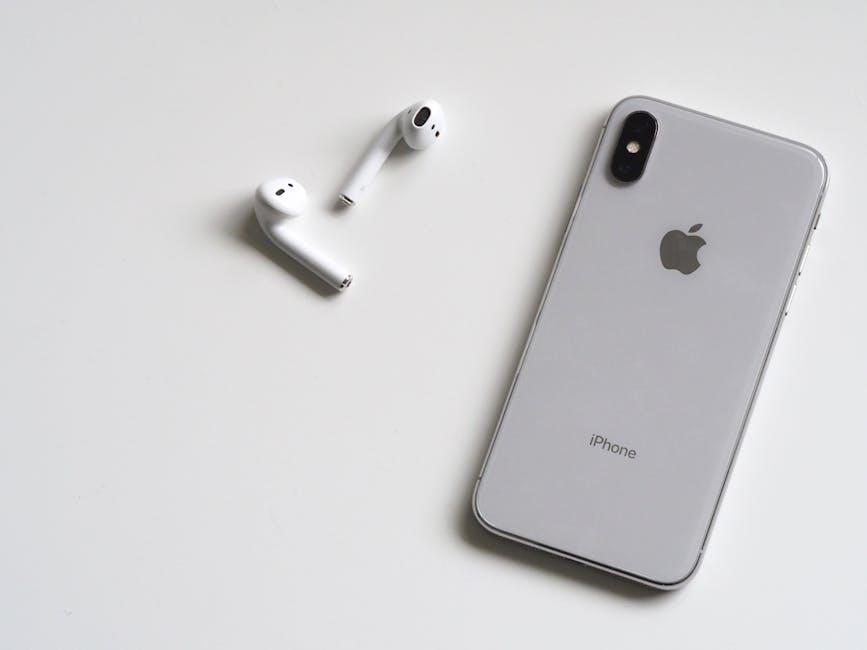
Preventing Future Audio Anomalies: Tips to Keep Your AirPods in Tune
Keeping your AirPods humming along smoothly isn’t just about getting lucky; it’s about taking some intentional steps to ensure they stay in prime condition. First off, regular updates are a must. Apple frequently rolls out firmware updates that fine-tune performance, squash bugs, and enhance overall user experience. So, don’t ignore those little notifications to update your device. Additionally, cleaning your AirPods is crucial. Dust and debris can easily muck up the sound quality and even lead to audio dropouts. A simple wipe with a soft, lint-free cloth can do wonders. Just be gentle—think of it like giving your AirPods a little spa day!
Next, consider battery health. Just like your trusty smartphone, keeping your AirPods charged and avoiding extreme temperatures can prolong their lifespan. Storing them in their case when they’re not in use not only keeps them safe but also ensures they stay charged. It’s also wise to monitor your Bluetooth connection. A stable connection can often eliminate the glitches that cause unwanted muting during playback. Here are some extra tips to keep your AirPods performing their best:
- Reset your AirPods: If you’re experiencing consistent audio issues, don’t hesitate to reset them and start fresh.
- Avoid interference: Stay away from other electronic devices that may disrupt your connection.
- Use one at a time: If you’re having trouble with audio cutting out, try using one AirPod at a time.
Key Takeaways
So there you have it! If those pesky AirPods keep muting your YouTube videos and making you feel like you’re on a rollercoaster of frustration, you’re not alone. It’s like trying to watch a movie with a remote that has a mind of its own! Thankfully, with a few simple tweaks—like checking your Bluetooth settings, ensuring audio priority, or even giving your devices a good ol’ reset—you can get back to enjoying those videos without interruption.
Next time you dive into YouTube, you’ll be fully engaged, listening to every word and missing none of the action. Keep those earbuds close and remember to troubleshoot when needed; you’ll be back in the groove in no time. If you found this helpful, feel free to share it with friends who might be grappling with the same issue. Happy watching!