

Imagine this: you’re deep in a FaceTime call, catching up with a friend, when suddenly you get struck by the urge to pull up that viral video everyone’s been raving about. Sounds familiar, right? Juggling FaceTime and YouTube on your MacBook can be tricky business, but it doesn’t have to feel like a circus act! With a few smart strategies, you can switch between your chat with friends and that epic cat compilation video without missing a beat. Whether you’re looking to engage in heartfelt conversations or just need a good laugh, mastering this multitasking skill can elevate your Mac experience from mundane to spectacular. Let’s dive into how you can seamlessly juggle both worlds like a pro, keeping you connected and entertained all at once!
Mastering Multitasking with Split View for Seamless Interactions
Picture this: you’re chatting away on FaceTime while simultaneously soaking in the latest YouTube video. Sounds like a juggling act, right? With Split View on your MacBook, it’s as smooth as butter on hot toast! You can effortlessly resize the windows to fit your style—want FaceTime to be the star of the show? No problem! Just grab the corner of the window and stretch it until it fills your screen just the way you like it. Balancing video calls and entertainment has never felt so easy!
Why is this multitasking magic so effective? It’s all about keeping your focus where it matters. Here’s how you can make the most of it:
- Choose your apps: Open FaceTime and your favorite browser or YouTube app.
- Activate Split View: Click and hold the green full-screen button to engage Split View.
- Adjust to fit: Slide those windows around and find your perfect setup, whether it’s a big FaceTime window or a cozy YouTube corner for those epic fails or tutorials you can’t get enough of.
- Enjoy seamless interactions: No more switching back and forth like a ping-pong match—stay in the conversation and catch all the action!

Optimizing Your MacBook Settings to Elevate Your Video Calls
To really step up your video call game, tweaking a few settings on your MacBook can work wonders. Start by diving into your System Preferences. Under the Sound section, make sure your input and output devices are set to the right ones, ensuring the mic gains some love and your speakers don’t sound like they’re coming from a tin can. You don’t want to sound like you’re trapped in a closet during an important meeting, right? And while you’re at it, check your Display settings. Adjusting the brightness to a level that avoids glare but keeps your face illuminated can give you that professional glow, making your calls feel like a smooth conversation rather than a dark and dingy interrogation.
Don’t sleep on optimizing your camera settings! Open up the Photo Booth app to see how you look — it’s like a mini mirror but with fun effects. If you find yourself looking a bit washed out, play around with your Display Color settings to find a warmer tone that brings out your best features. Also, consider arranging your background for those drop-dead gorgeous aesthetics; a clean, clutter-free space speaks volumes about how put-together you are. You might even want to invest in a softbox or ring light; it’s as transformative as your favorite highlighter, brightening up your video calls with that magical touch.
| Setting | Optimal Value |
| Microphone Input | Built-in Microphone |
| Speaker Output | Headphones |
| Display Brightness | 70% |
| Camera Settings | Warm Tone |

Enhancing Your YouTube Experience with Picture-in-Picture Mode
Picture-in-Picture (PiP) mode is like your trusty sidekick when you need to keep an eye on a YouTube video while engaging in a lively FaceTime chat. Think of it as having the best of both worlds, where a small, resizable video screen floats over your desktop, allowing you to multitask like a pro. Imagine laughing at your buddy’s latest joke on FaceTime while still enjoying that thrilling cat video or learning some new cooking tips on YouTube—all without missing a beat or fumbling around trying to switch windows. It’s a game-changer for anyone trying to juggle multiple tasks without losing their cool.
To activate this nifty feature, simply play your desired YouTube video, right-click on the video screen, and select ”Picture in Picture.” Voila! Now you’ve got a mini version of your video that you can move around and resize as you please. To elevate your experience even further, consider these tips:
- Adjust Size: Drag the corners to fit your viewing preference.
- Keep it Neat: Position it in a corner that doesn’t obstruct your FaceTime window.
- Perfect Sync: Make sure your audio is balanced so you don’t miss any important bits.
With PiP, you can efficiently manage your screen real estate, leaving you free to engage in meaningful conversations without sacrificing your entertainment. It’s like having your cake and eating it too—where your multitasking dreams come true!
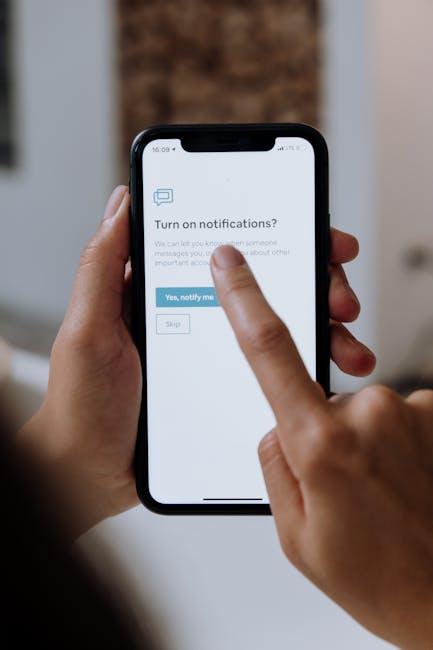
Navigating Notifications and Distractions Like a Pro for Ultimate Focus
Staying laser-focused can feel like trying to juggle too many balls at once—one minute you’re deep in thought, and the next, a FaceTime call pops up, or a YouTube notification chimes in. But fear not! With the right approach, you can manage these distractions like a pro. First, take charge of your notifications. Navigate to your System Preferences, head to Notifications, and tweak things to your liking. Consider silencing those pesky app notifications or scheduling “Do Not Disturb” mode when you’re diving deep into a project. Taking control of what alerts your MacBook sends can turn you into the master of your own focus!
Another nifty trick is to use an app like Focus@Will or even your own curated playlist on Spotify to drown out surrounding distractions while keeping you engaged during tasks. It’s like having your personal soundtrack that gets you into the groove! Also, embrace the power of splitting your screen efficiently. You can have FaceTime on one side while catching the latest YouTube trend on the other, all while using the Mission Control feature to switch between apps seamlessly. Here’s a quick table to help you find the right balance:
| Tip | Description |
|---|---|
| Do Not Disturb | Silence notifications during deep work sessions. |
| Use Apps | Engage with music or audio apps to maintain focus. |
| Split Screen | Maximize screen space for multitasking efficiency. |
Closing Remarks
So there you have it! Balancing FaceTime and YouTube on your MacBook doesn’t have to be a circus act, right? With just a few nifty tricks up your sleeve, you can chat with buddies and catch up on your favorite videos without skipping a beat. It’s like being at a concert, dancing and singing along while keeping an eye on the scoreboard—you get to enjoy the best of both worlds!
Next time you’re multitasking like a pro, just remember: it’s all about striking that perfect balance. Keep those apps organized, your focus sharp, and maybe even throw in a snack or two to fuel the fun.
Now, go ahead and give it a whirl! Whether you’re laughing it up with friends or diving into the latest YouTube sensation, you’ve got the skills to juggle it all seamlessly. Happy multitasking! 🎉