

Have you ever sat through a presentation and thought, “This could really use a video!”? Well, you’re not alone! Embedding YouTube videos in PowerPoint presentations can transform a standard slideshow into an engaging experience that captures attention and sparks interest. Imagine your audience glued to the screen, laughing, learning, or even gasping in awe at just the right moment. In this guide, we’re diving into how to seamlessly integrate those viral clips, educational gems, or inspiring talks right into your slides. Say goodbye to dull bullet points and hello to dynamic, visually captivating storytelling—let’s make your presentations pop!
Mastering the Magic of YouTube Links in PowerPoint

Adding YouTube videos to your PowerPoint presentations is like sprinkling a little extra magic into your storytelling toolbox. Imagine taking your audience on a visual journey that enhances your message—now, that’s powerful! To get started, you’ll want to grab the video link straight from YouTube. Just click on the ”Share” button below the video, copy that link, and you’re halfway there. But don’t stop just yet! It’s all about embedding the video seamlessly into your slides. In PowerPoint, choose the slide where you want the video, hit “Insert,” pick “Video,” and select ”Online Video.” Paste the link, and voilà! Your video is now part of your presentation like peanut butter and jelly.
Now, let’s not forget the beauty of having a backup plan. Sometimes, Wi-Fi can be as temperamental as a cat on a rainy day, right? To keep your presentation purring smoothly, consider downloading the video and inserting it directly into PowerPoint. Here’s a quick comparison table to help you weigh your options:
| Option | Pros | Cons |
|---|---|---|
| Embed YouTube Link | Easy to do Automatically updates |
Requires internet Possible buffering |
| Download & Insert | No internet needed Plays smoothly |
Storage space Manual updates required |
By understanding these options, you can choose the best method that suits your needs. So go ahead, unleash the potential of video in your presentations, and watch your ideas come to life in a way that’s more engaging and impactful. Your audience won’t just hear your words—they’ll see your vision!
Seamless Steps to Embed Videos Like a Pro

Embedding a YouTube video into your PowerPoint presentation is as easy as pie, and it can seriously level up your game. First off, grab the video link from YouTube. Just click on the “Share” button under the video, and copy that URL. Now, hop over to PowerPoint and pick the slide where you want the video to shine. Click on the “Insert” tab, and then select “Video” from the options. Choose “Online Video” and paste the link you just copied, click “Insert” and voilà! Your video is ready to play right in your slideshow.
Want to make sure everything flows smoothly without a hitch? Consider these tips:
- Make sure your internet connection is solid to avoid buffering issues during presentation time.
- Check the video size and resolution to ensure it fits well on your slide.
- Run through your presentation beforehand to familiarize yourself with how the video integrates with your content.
Enhancing Your Presentation with Engaging Multimedia
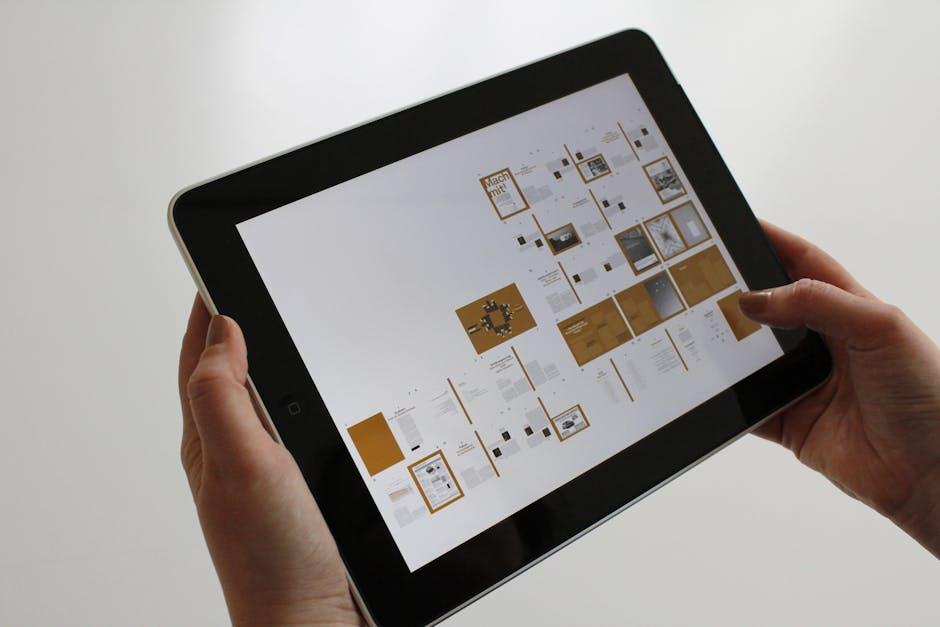
Adding some multimedia pizzazz to your PowerPoint presentations can make them way more engaging. Think about it: instead of just tossing around a bunch of facts and figures, you can bring your slides to life with visuals that captivate your audience. Embedding a YouTube video is like throwing in a surprise punchline that keeps folks on the edge of their seats. Whether it’s a hilarious clip to lighten the mood or an expert explaining complex concepts, it adds depth and richness to your message. Here are some tips to think about:
- Choose relevant videos: Make sure the content of the video is directly connected to your topic.
- Keep it short: Aim for videos that are concise; you want to maintain your audience’s attention.
- Engage with the video: Don’t just slap it on the slide—interact with it, point out key moments!
To make the integration seamless, use a simple process to embed videos. PowerPoint allows you to insert YouTube URLs directly, making it easier than ever to showcase epic content. You can even customize how the video displays, adjusting the size and placement to fit your aesthetic. Here’s a quick comparison to help you decide between including a video or sticking with traditional slides:
| Approach | Impact | Engagement Level |
|---|---|---|
| Text-Based Slides | Informative, but often dull | Low |
| Embedding Videos | Dynamic, visually engaging | High |
With a little creativity and these tools at your disposal, you can turn your presentations from routine to riveting in no time!
Troubleshooting Common Embedding Woes with Ease

Embedding YouTube videos into your PowerPoint presentations can sometimes feel like navigating a maze blindfolded. If you’re hitting roadblocks, don’t sweat it! One common issue is the video not playing during the presentation. This can often happen due to the lack of a stable internet connection when you’re presenting. Remember, PowerPoint doesn’t embed the video; it just links to it online. So, double-check your network connection or try downloading the video using a reliable converter if offline access is crucial. Adjusting your settings might help too—ensure that the video is set to play automatically or when clicked, and always test it out before showtime.
Another frequent hiccup involves the video not displaying properly on the slide. This could be due to PowerPoint’s compatibility with certain videos. If your video is too large or in an unsupported format, it can cause chaos. To avoid this, consider using common video formats like MP4 or MOV and keep your files optimized for smooth playback. You can also take advantage of the format options within PowerPoint to resize your video, ensuring it fits seamlessly with your presentation layout. You’re looking for a polished finish, so make sure you’re not leaving a funny black space around your video. Here’s a quick overview to keep in mind:
| Issue | Solution |
|---|---|
| Video not playing | Check internet connection or download video |
| Video not displaying correctly | Use common formats & resize video |
| Volume issues | Ensure sound is unmuted & volume is up |
The Way Forward
And there you have it! Embedding YouTube videos into your PowerPoint presentations can be a game-changer. It’s like adding a dash of spice to your favorite dish—suddenly, everything’s more flavorful and engaging. Imagine your audience’s eyes lighting up when a relevant clip plays, pulling them into your narrative like a moth to a flame.
So next time you’re putting together a presentation, remember how easy it is to incorporate that multimedia magic. No more dry, information-packed slides that put your audience to sleep. Instead, you’re creating an interactive experience that’ll have them leaning in, eager to hear more.
Give it a try! Play around with your slides, and don’t hesitate to experiment with different videos. You might just find that perfect clip that ties everything together. If you have questions or experiences to share, drop a comment! Let’s keep the conversation going. Happy presenting!