
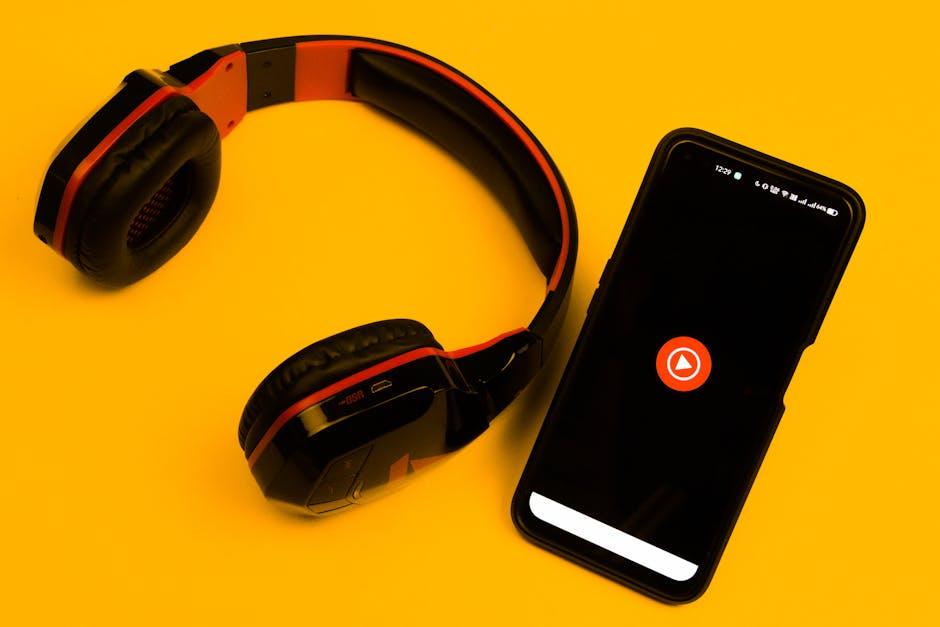
Ever find yourself wanting to jam out to your favorite YouTube tunes while scrolling through social media or catching up on emails? You’re not alone! A lot of folks crave that sweet multitasking life, but iPhones can throw a wrench in the works when it comes to playing videos in the background. Luckily, I’ve got the scoop on how to unlock that feature and keep the vibe going without getting tethered to the screen. So grab your earbuds and let’s dive into the world of background playback on YouTube, making your listening experience smoother than a fresh jar of peanut butter!
Mastering Background Play with YouTube Premium
With YouTube Premium, you can enjoy your favorite content while multitasking, and it’s a game-changer for iPhone users! Imagine listening to an insightful podcast or the latest music video while scrolling through your social media feed or checking your emails. It’s like having your cake and eating it too! To get started, all you need to do is subscribe to YouTube Premium. Once you’re in, simply play your video and then swipe up, or lock your screen. Voila! Your video keeps playing in the background while you go about your business, freeing you from the hassle of staring at your screen.
This feature not only enhances your viewing experience but also lets you make the most of your phone usage. Whether you’re cooking, driving, or just relaxing, you can dive into those captivating stories or playlists without missing a beat. Plus, here are a few key perks of using YouTube Premium for background play:
- No ads: Enjoy an uninterrupted experience.
- Offline downloads: Save your favorite videos for later without needing Wi-Fi.
- Access to YouTube Music: Tap into a huge library of songs and playlists.
YouTube Premium is basically your ticket to having a smooth, enjoyable, and flexible video experience on your iPhone!

The Secret to Using Safari for Background Playback
Ready to give your iPhone a whole new level of YouTube enjoyment? It’s all in the settings! First off, fire up Safari and navigate to the YouTube site. Make sure you’re logged in to your account for the best experience. Next, hit the ‘Share’ button at the bottom of your screen, and select *Request Desktop Site*. This little trick transforms the mobile version into its desktop counterpart, allowing you to unlock features that were previously hidden. Once you start playing a video, just hit the Home button or swipe up to return to your home screen. Voila! The video keeps playing while you do other things.
Now, a couple of tips to enhance your background playback experience: 1. Use the control center to pause or skip tracks easily, just like a music app. 2. If you want to keep the video rolling while browsing other apps, consider putting your device in dark mode to save battery life. Your iPhone is like a small multitasking computer — why not take full advantage? And if music is your vibe, check out playlists or dive into related videos while you let the background groove roll on.
Free Alternatives for Background Listening on YouTube
Want to enjoy your favorite YouTube tunes without staring at the screen all day? There are some fantastic free alternatives that can bring a little freedom to your listening experience! You don’t need to be a tech guru to use these options. Consider trying out Safari: just open YouTube in your browser, play a video, and then switch to another app or lock your screen. It’s like finding a secret door in a familiar place—who knew it could be this easy? Or go with Google Chrome, which works similarly. Just ensure you’ve allowed it to run in the background, and voilà, great music on the go!
If you’re feeling adventurous and want to explore even more, check out some dedicated apps like Musique or Vanced. These apps let you dive into your playlists without those pesky ads interrupting your jam. Think of it as your VIP pass to the concert of your life, where you get to soak in every note—no interruptions! And if you ever find yourself missing a feature, just remember that these platforms are constantly updating, which means even more goodies are just around the corner. How cool is that?
Tips and Tricks to Enhance Your Mobile Experience
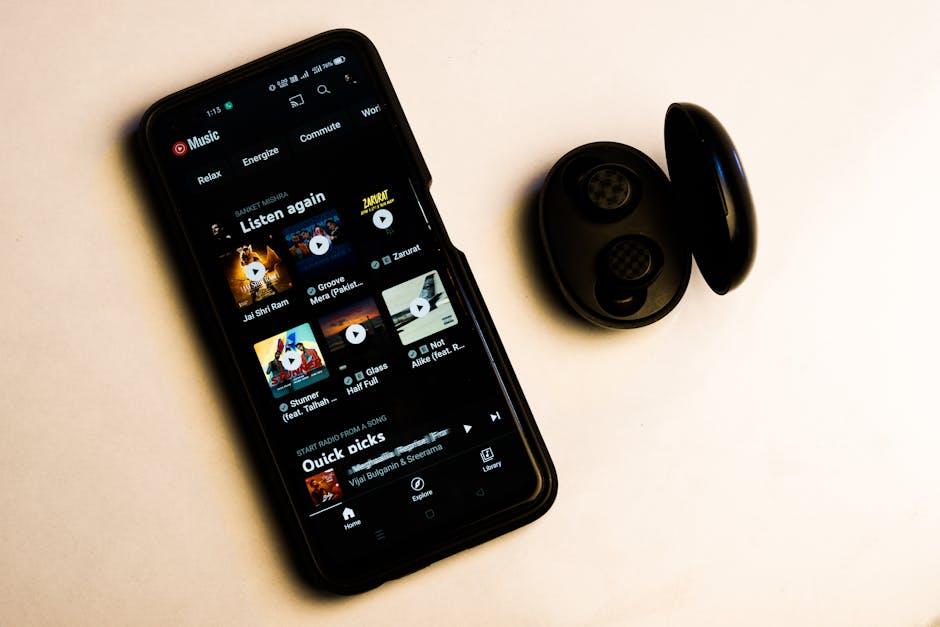
To elevate your YouTube experience on iPhone, leveraging a few handy tricks can really make a difference, especially when it comes to multitasking. First off, consider using the Picture-in-Picture (PiP) feature if you have iOS 14 or later. This allows you to shrink your video into a small window that floats over other apps—like checking notifications or responding to messages. Just swipe up to minimize the app while your video continues to play! Additionally, subscribing to YouTube Premium opens up a treasure trove of features, including offline viewing and ad-free watching. But if Premium isn’t your thing, check out some third-party browsers that enable background playback. They could be your ticket to music and podcasts flowing while you scroll through your feed.
Next up, you might want to organize your playlists for easy access. Having all your favorites lined up means no endless searching. Think of it like stocking your playlist pantry—when you open it up, everything you love is right there, ready for you. Here’s a quick tip: create playlists based on different moods, like ‘Chill Vibes’ or ‘Energy Boost,’ and find your perfect soundtrack for any moment of the day! Want to fall asleep to relaxing sounds? Or maybe pump yourself up for a workout? Playlists can personalize your experience, making your iPhone the ultimate multimedia device. don’t forget to adjust the video quality settings in the app to save data on the go—nobody wants to run out of data when chasing that binge-watch fix!
The Conclusion
So, there you have it! Unlocking the power of YouTube on your iPhone to play videos in the background is like turning your phone into a personal podcast machine, perfect for multitasking. Whether you’re jamming out to your favorite tunes, soaking up knowledge from tutorials, or simply enjoying narrated stories while you’re on the go, this little trick is a game changer.
Remember, it’s all about finding that balance between your screen time and the real world. So, go ahead—give it a try, and let those videos keep playing while you tackle that mountain of laundry, walk the dog, or even just chill with a cup of coffee. Who knew YouTube could be such a flexible companion? If you’ve got any tips of your own or experiences to share, drop them in the comments. Until next time, keep those videos rolling, and happy watching (and multitasking)!