
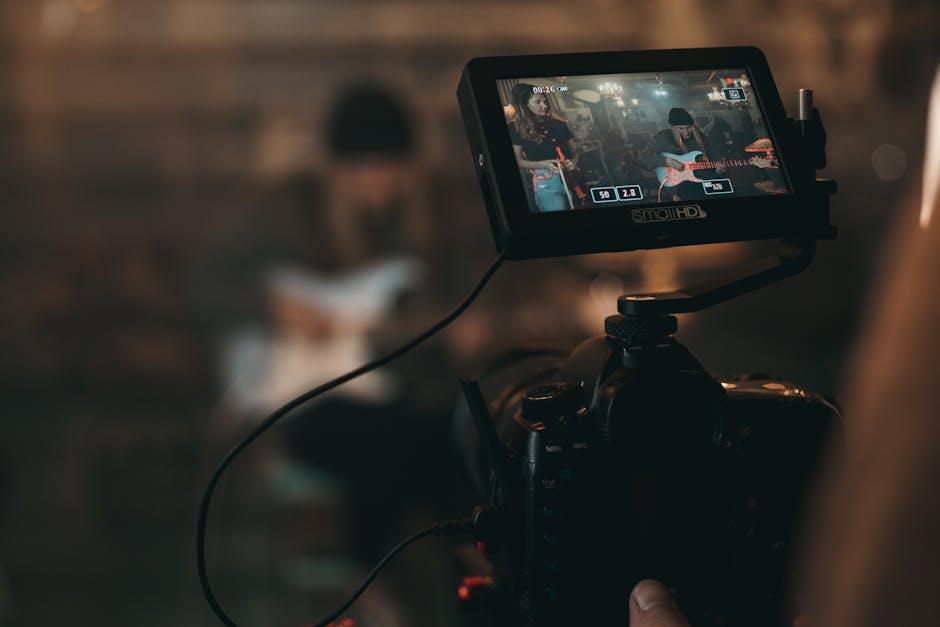
Ready to take your YouTube game to the next level? Screen recording is like the secret sauce for creating awesome content; it lets you share your know-how, gameplay, or tutorials with the world right from your laptop. Picture this: you’re guiding your viewers through a complicated software, sharing epic gaming moments, or showcasing a step-by-step craft tutorial, all while your laptop captures it perfectly. But let’s be real, diving into the world of screen recording can feel a bit daunting. Fear not! We’re here to break it down into bite-sized chunks, turning you into a screen recording pro faster than you can say “Let’s hit record!” Whether you’re just starting or looking to polish your skills, we’ll guide you through the essentials so you can create stunning videos that keep your audience coming back for more. So, are you ready to unlock your laptop’s potential? Let’s get into it!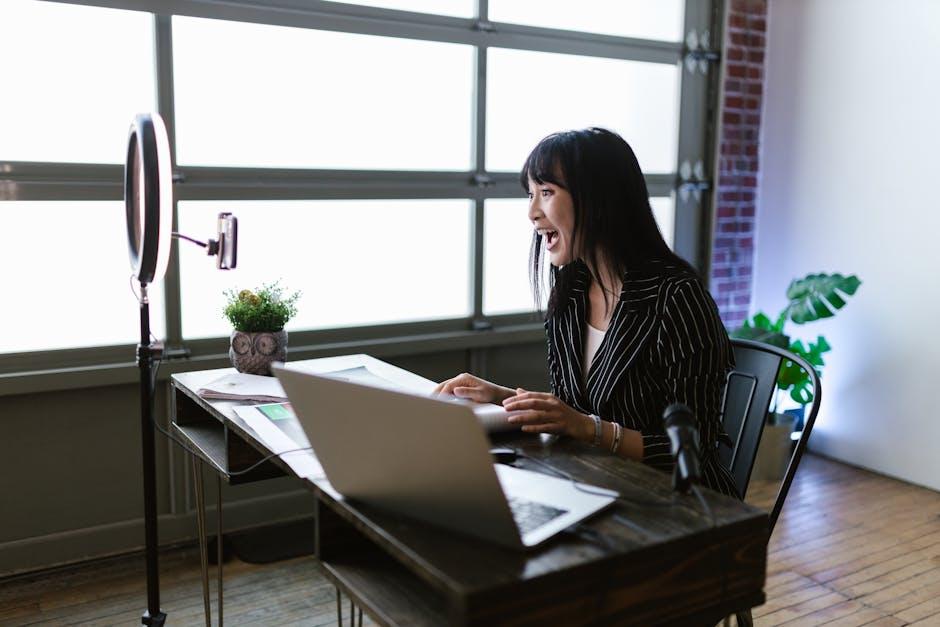
Choosing the Right Screen Recording Software for Your Needs
When diving into the world of screen recording, there are a few key factors to consider to find software that fits like a glove. First off, think about your operating system. Are you team Windows or Mac? Some applications are designed specifically for one or the other, while others flourish as cross-platform solutions. Next, consider how you plan to use your recordings. Are you sharing tutorials, gameplay, or perhaps vlogs? This will dictate whether you need features like audio integration, editing tools, or even video resolution options. It’s like choosing a bike: if you’re cruising around town, you might want something lightweight, but if you’re hitting a bumpy trail, durability and shock absorption are key!
Another aspect to weigh is your budget. There are fantastic free options like OBS Studio that can hold their own against the paid competition, but they might require a bit of a learning curve. Conversely, premium tools often come packed with handy features and customer support—think of them as the luxury vehicles of the bunch. You should also look for tools that allow for easy file sharing and come with solid customer reviews. A good way to compare is to create a simple table to weigh your options side by side:
| Software | Price | Key Features | Best For |
|---|---|---|---|
| OBS Studio | Free | Customizable, Multi-source | Tutorials, Streaming |
| Camtasia | $249 | Built-in Editor, Annotations | Tutorials, Presentations |
| Screencast-O-Matic | $1.50/month | Easy Upload, Sound Recording | Quick Recordings |
Mastering Settings and Optimizing Video Quality
When it comes to screen recording on your laptop, diving into the settings can feel like wandering through a maze. But fear not! With the right tweaks, you can elevate your video quality from okay to absolutely stunning. Start by selecting the appropriate resolution and frame rate. Ideally, you want at least 1080p for crystal-clear clarity, but if your laptop can handle it, 4K is a showstopper. Consider adjusting the frame rate too—30 FPS should suffice for most content, but if you’re showcasing fast-paced gaming or dynamic software, bumping it up to 60 FPS can make a world of difference. Don’t forget about choosing the correct recording format, as some are more compatible with editing software than others.
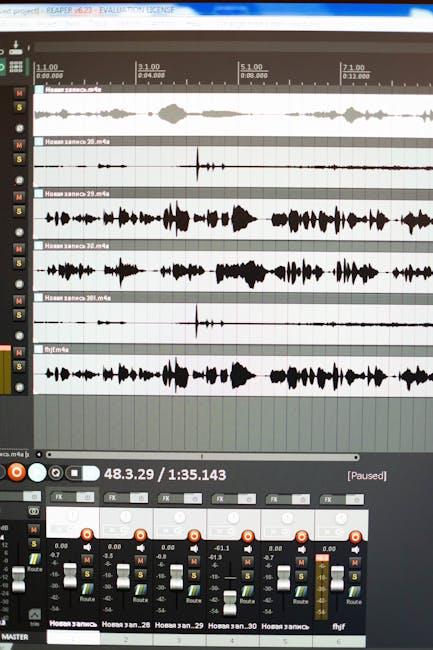
Next up, let’s talk audio. It’s easy to overlook, but nobody wants to listen to a video that sounds like it was recorded in a tin can. Invest in a decent microphone or headset to capture crisp audio. You might also want to check the input levels in your recording software to ensure your voice (or gameplay sounds) aren’t muted by the chaos of background noise. To keep things organized, here’s a quick checklist to optimize your settings:
- Resolution: 1080p or 4K
- Frame Rate: 30 FPS or 60 FPS
- Recording Format: MP4 or MOV
- Audio Source: Use an external microphone
- Input Levels: Check to avoid distortion
By getting these settings just right, you’re not just recording a screen; you’re creating an experience that viewers will want to stick around for! Whether it’s tutorials, gameplay, or reviews, optimizing these elements can turn your videos from bland to grand.
Tips for Engaging and Professional-Looking Recordings
To make your recordings truly shine, focus on creating a visually appealing environment. Lighting plays a crucial role; natural light is your best friend. Position your laptop near a window or invest in a ring light to ensure your face is well-lit and clear. And don’t forget about your background! A clean, uncluttered space not only looks more professional but also minimizes distractions for your viewers. Consider a simple bookshelf, a vibrant plant, or even a stylish poster as a backdrop to enhance the overall vibe of your video. Is there anything worse than a messy room stealing the spotlight from your expertly crafted content?
Next, sound quality can either make or break your recordings. Investing in a decent microphone can work wonders for your audio. Don’t underestimate the power of a quiet room; background noise is the enemy! Close your windows, mute notifications, and, if possible, record during quiet times of the day. It’s also helpful to rehearse your script or points ahead of time to maintain a smooth flow. Remember, if you sound confident and enthusiastic, your audience will feel engaged. So go ahead, practice those speaking skills—they’re just as important as the visuals!

Editing and Enhancing Your Videos for Maximum Impact
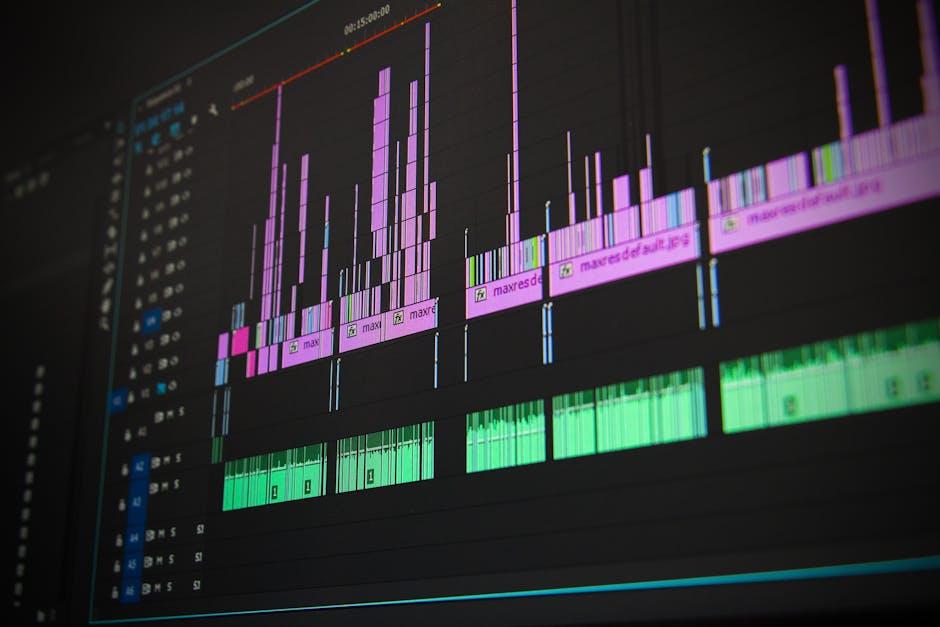
Once you’ve captured your screen recordings, it’s time to sprinkle that magic dust of editing, right? Think of editing as the secret sauce that transforms a good video into a great one. Start by trimming the edges—nobody wants to sit through a 20-minute recording when all they need is a quick tutorial! Utilize transition effects to give your video a smooth flow; quick cuts can keep viewers engaged, while fades can add a professional touch. Don’t forget to incorporate text overlays to emphasize key points. After all, adding bold captions can help viewers absorb important information without straining their ears.
Sound is just as crucial as your visuals, so let’s not neglect it! Use background music to set the mood, but make sure it doesn’t overshadow your voiceover; it’s like finding that sweet spot between salt and sugar in a recipe. Consider using a balanced audio clip that complements without overpowering your message. And if you have the chance, add more elements like graphics or animations—they can make complex ideas much easier to digest. With these tips, your videos won’t just inform; they’ll resonate, leaving a memorable impact that encourages viewers to hit that “subscribe” button!
Final Thoughts
And there you have it! Mastering screen recording on your laptop for YouTube is like throwing a party: you need the right setup, some cool tricks up your sleeve, and a touch of personality to keep your audience engaged. With everything from selecting the best software to perfecting your audio, you’re now equipped to create engaging content that viewers will love.
Remember, practice makes perfect, and every recording is a chance to improve your skills. Don’t stress too much about getting everything right on the first go; learning is all part of the journey. So, grab your laptop, unleash your creativity, and start sharing your knowledge with the world! Who knows? Your next video could be the one that goes viral. Happy recording, and may your YouTube channel shine bright like a diamond!