

Have you ever settled in for a binge-watching session on YouTube, only to be met with the frustrating silence of a playlist that just won’t play? It’s like showing up to a party where the music won’t start—such a letdown! If your favorite big playlist is stalling out instead of rolling through your videos, you’re not alone. We’ve all been there, and it can be downright puzzling. What’s the deal? Let’s dive into the ins and outs of YouTube’s autoplay feature, unravel the mysteries, and get your playlists jamming again in no time!
Understanding Autoplay Settings and Preferences

Autoplay settings can sometimes feel like a mystery, right? You’re eagerly sitting back, ready to jam out to your favorite tunes or catch the latest vlogs, only to find that your carefully curated YouTube playlist is staring back at you in silence. It’s crucial to check your autoplay preferences, as they determine whether your next video automatically kicks in or causes an awkward pause. Here’s a quick checklist to troubleshoot:
- Autoplay Toggle: Make sure the autoplay option is turned on. You can find this setting right at the top of your playlist or under your account settings.
- Browser/Device Settings: Sometimes, entering fullscreen mode disrupts autoplay. Check your browser settings too; some have built-in restrictions.
- Playlists vs. Individual Videos: Autoplay might work differently for playlists compared to single videos. Ensure you’re in the playlist view.
If all else fails, it might just be a glitch in the matrix. YouTube can experience technical hiccups, just like that moment when your favorite song cuts off in the middle. Restart the app, clear your cache, or even refresh your device to see if it gets back on track. Plus, don’t forget that your viewing history can affect what plays next; if you’ve been diving into weird videos, that might impact the algorithm’s recommendations. Here’s a simple breakdown:
| Condition | Effect |
|---|---|
| Autoplay On | Videos automatically play one after the other |
| Autoplay Off | Manual selection required for next video |
| Cleared Cache | Resets settings to improve performance |
Common Playlist Issues That Might Be Behind the Scenes
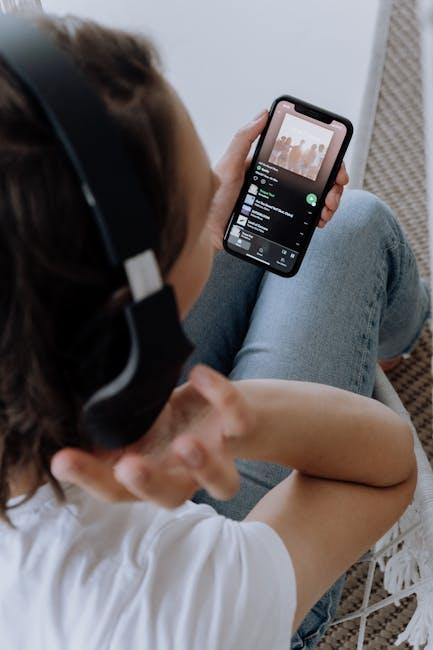
Ever found yourself staring at a playlist that just won’t autoplay? It can feel like a cruel twist of fate, especially when you’re vibing and all you want is to let the music play on without interruption. A few common culprits could be lurking behind the scenes. For starters, playlist settings might not be configured correctly. If you’ve set it to play only specific videos, or if the autoplay feature is switched off in your account settings, that’s a quick fix! Also, don’t forget to check for any hidden restrictions like age restrictions or content filters. Sometimes, those little hiccups can create a big wall between you and your tunes.
Another sneaky issue could stem from buffering problems or poor internet connectivity. If that Wi-Fi signal is wavering like a leaf in the wind, your playlist might just give up the ghost. In addition, browser extensions or ad blockers can sometimes interfere with video playback. Have you tried turning those suckers off? They might be crashing your playlist party! And let’s not forget about your browser or the app itself; outdated software can be a real buzzkill. Make sure everything is updated to its latest version to keep the beats flowing. Here’s a quick reference on what to check:
| Issue | Solution |
|---|---|
| Playlist settings misconfigured | Adjust your autoplay settings and content restrictions |
| Poor internet connection | Check your Wi-Fi signal and restart your router |
| Ad blockers/extensions interference | Disable any blocking extensions during playback |
| Outdated browser/app | Update your software to the latest version |
Optimizing Your Playlist for the Perfect Viewing Experience
Imagine your playlist as a well-orchestrated concert, where every song flows seamlessly into the next, keeping the audience engaged and excited. To achieve this magical experience, you need to optimize your playlist. Start by selecting tracks that not only complement each other in terms of theme and mood but also vary in tempo. No one wants to dive into a playlist that feels like a drag, right? Think about creating a rhythm—maybe kicking off with something upbeat, then smoothly transitioning into something mellow. It’s all about keeping your viewers on their toes!
Pay attention to the duration and the order of your videos as well. If you’ve got a mix of long and short clips, aim to balance them out wisely so your audience isn’t left hanging with a lengthy video right after a quick one. That could be a major buzzkill! Consider grouping videos by subtopics, or maybe even creating a flow where every video ends with a question or a teaser for the next. This way, viewers feel compelled to keep watching and won’t hit that dreaded skip button. Here’s a quick table to illustrate effective playlist strategies:
| Strategy | Description |
|---|---|
| Video Themes | Group similar content together to maintain interest. |
| Vary Lengths | Mix short and long clips for an engaging pace. |
| Interactive Endings | Encourage viewer participation with questions or teasers for the next video. |
Tips and Tricks to Rev Up Your Autoplay Feature

Struggling to get that autoplay function to kick in? You’ve got some options to turn things around. First, check whether autoplay is enabled in your settings. Sometimes it’s as simple as a toggle. Don’t forget to look for any browser settings that might affect playback; ad blockers or privacy settings can occasionally throw a wrench in the gears. Another quick fix? Ensure the playlist isn’t paused or that you’re not in a restricted mode that might limit your viewing experience. You’d be surprised how these minor hiccups can halt your groove!
Still not budging? It might be worth looking into your internet speed. A weak connection can result in glitchy playback and autoplay issues. Try rebooting your router or switching to a different network. If you’re rocking mobile data, consider connecting to Wi-Fi for a seamless experience. Also, check if the YouTube app is updated—sometimes an outdated app can lead to performance issues. Here’s a handy checklist to keep in mind:
- Check autoplay settings
- Clear your browser cache
- Review network speed
- Update your app
Concluding Remarks
And there you have it! If your big YouTube playlist isn’t autoplaying, you’re definitely not alone in this minor digital drama. Remember, it’s not just about the tech—it’s about finding that sweet spot where you can kick back and let the videos roll seamlessly. Whether it’s a pesky setting, a browser quirk, or an app update gone haywire, a little troubleshooting can go a long way. So, take these tips, give them a whirl, and don’t hesitate to dive back into those playlists you love. After all, there’s nothing like a good binge session of your favorite content! Got any other tricks up your sleeve or questions about your YouTube woes? Let’s keep the convo going, and soon enough, you’ll be jamming to those tunes and catching those clips without a hitch. Happy watching!